

Organize your questions and next steps, then save your worksheet.
Summary and next steps
Keep the full result row and document date together, then ask the care team to explain its meaning.
- Verify the document belongs to the right person and date.
- Read result, units, range and notes together.
- Use the secure patient portal for questions; avoid public upload tools.
Editorial maintenance: October 24, 2026. Summary layout, related links and technical metadata updated. This is not a full clinical review.
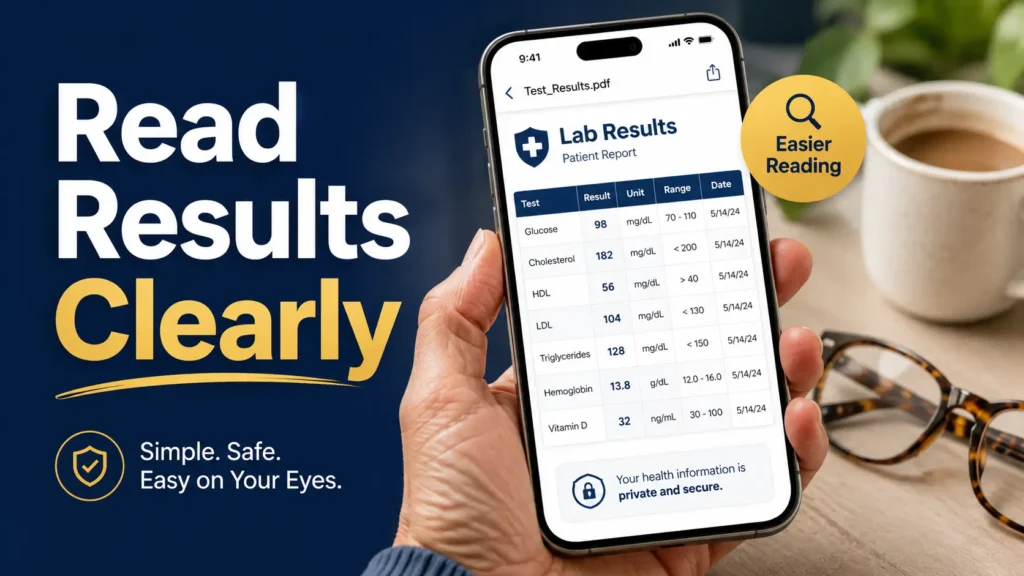
Patient Portal Reading Guide
How to Read PDF Test Results on a Phone
with Aging Eyes
A medical PDF on a phone can feel like a tiny courthouse for your nerves: columns, flags, reference ranges, dates, fine print, and one alarming red number sitting under a spotlight. When near vision changes after 40, the problem is not intelligence. The problem is that a lab table was never designed to be read through a keyhole.
This guide is about making the screen safer before making meaning from the result. You will learn how to enlarge, rotate, scan, screenshot, and organize PDF test results so you are less likely to confuse dates, units, flags, or old results with new ones.
It will not diagnose you, and it will not turn a phone into a doctor. But it can help you arrive at your provider conversation with cleaner notes, better questions, and fewer little digital ghosts rattling around in the portal.
Read the right row
Keep the test name, result, unit, range, and date together.
Avoid flag panic
Treat high, low, abnormal, and positive as signals to clarify.
Build one clean kit
Save the PDF, screenshot the full row, and write one question.
The goal is not to stare harder. It is to read smarter, with less squinting and less midnight doom-scrolling. 🔎
Snapshot
This article is for adults with aging eyes, caregivers helping a parent or spouse, and anyone reading lab, imaging, pathology, or visit-summary PDFs on a phone. You will learn a safer phone workflow for enlarging PDFs, checking identity and dates, understanding flags without self-diagnosing, and preparing a one-screen results kit for your provider.
Table of Contents
Before You Read: What This Guide Can and Cannot Do
Reading PDF test results on a phone is a practical skill. Interpreting medical results is a clinical task. Those two things often get blurred inside patient portals, especially when results arrive before a doctor has explained them.
This guide can help you avoid common reading mistakes: wrong date, wrong row, cropped screenshot, hidden second page, tiny footnote, or unit confusion. It can also help caregivers support someone with aging eyes without taking over the conversation.
It cannot tell you whether a result is dangerous for your body, your history, or your medication list. Lab values can vary by lab, age, sex, timing, fasting status, hydration, specimen quality, and medical context. A PDF is a clue board, not a final verdict.
Before you act
Use this article to read, save, and organize your test-result PDF more safely. Do not use it to diagnose yourself, change medication, ignore symptoms, or decide that a flagged result is harmless. For urgent symptoms, critical portal alerts, pregnancy concerns, chest pain, stroke symptoms, severe weakness, severe bleeding, or sudden vision changes, contact emergency care or your provider right away.
What to confirm with a provider
When you contact your provider, ask about the result in context. A useful question is not “Is this number bad?” It is “What does this result mean for me, given why the test was ordered?”
That small phrase turns panic into precision. It invites the clinician to connect the number to your symptoms, medications, previous results, and the reason for testing.
Why aging eyes change the task
Many adults notice near-vision difficulty beginning in midlife. Reading a menu, prescription label, or PDF table can become harder even when distance vision still feels fine.
Medical PDFs make that change more annoying because they compress important meaning into tiny rows. A single line may include the test name, result, unit, reference range, flag, collection date, and a note. Miss one piece, and the whole sentence of the result changes.
Readability First: Fix the Screen Before the Result
The safest first move is boring, which is why it works: make the PDF readable before you try to understand the result. Do not interpret a medical number while your phone is dim, tilted, smudged, or showing only half the table.
A phone screen can turn a lab report into a puzzle box. Your job is to make the puzzle larger, brighter, and more stable.
Why “just zoom in” fails on medical PDFs
Pinch-zooming can enlarge the number but hide the label. That is the classic trap. You see “148” or “5.8” but lose the unit, reference range, or whether the column belongs to current results or previous results.
Medical PDFs often have wide tables. Once zoomed, the screen becomes a moving window. A tiny finger drag can shift you from “Result” to “Reference Range” without warning.
The 30-second phone setup
- Clean the screen so glare and fingerprints do not blur small numbers.
- Increase brightness enough to read comfortably, but reduce harsh white if it bothers your eyes.
- Rotate the phone sideways so wide tables fit better.
- Turn on larger text or display zoom before opening the PDF, if your phone supports it.
- Use magnification for the table, not just the headline or portal summary.
- Place the phone on a table when possible so your hands are not shaking the row.
Key takeaway
Before reading any result, make the whole row visible: test name, result, unit, reference range, flag, and date. A scary number without its row is just a number wearing a Halloween costume.
iPhone and Android settings that help aging eyes
On iPhone, display and accessibility settings can help with larger text, bold text, contrast, display zoom, and screen magnification. On Android, many phones include font size, display size, color and contrast options, and magnification controls.
The exact menu names vary by phone model and software version. Search your Settings app for “text size,” “display size,” “magnification,” “contrast,” or “accessibility.” That search bar is the little trapdoor to sanity.

The Three-Line Scan: Name, Date, Test
Before you read any high, low, positive, negative, or abnormal label, do a three-line scan. It sounds almost too simple, but it prevents several of the most common portal mistakes.
The three lines are: patient name, collection date, and test name. If those are wrong or misunderstood, the rest of the PDF sits on wobbly legs.
Confirm the patient name before anything else
This matters most for caregivers, spouses, adult children, and anyone managing more than one portal login. It is surprisingly easy to open the wrong PDF when several family members use the same clinic system.
Read the full name and date of birth if shown. Do this before reacting emotionally to any number. The first job is not interpretation. It is identity.
Check the collection date, not just the upload date
A result may appear in your portal today, but the blood draw, urine sample, imaging exam, or pathology review may have happened days earlier. The upload date tells you when the portal showed it. The collection date tells you when the specimen or exam happened.
This is especially important when comparing results over time. If you are checking whether something improved after a medication change or diet change, the collection date is the anchor.
Match the test name to the reason it was ordered
A basic metabolic panel, lipid panel, A1C, urinalysis, imaging report, and pathology result do very different jobs. A result makes more sense when tied to the question your provider was asking.
Try writing this sentence: “This test was ordered because _____.” If you cannot finish the sentence, that is a good provider question.
The Tiny Flag Trap: High, Low, Abnormal, Positive
Flags are designed to get attention. Unfortunately, on a small phone screen, they can feel like a siren in a shoebox.
A flag is a signal that a result is outside a stated range or has a special status. It is not automatically a diagnosis, emergency, or complete explanation.
A red flag is a signal, not a verdict
High, low, abnormal, and out of range mean the result should be reviewed in context. That context may include your age, sex, medications, recent illness, hydration, fasting status, pregnancy status, prior results, and the reason for testing.
A mildly out-of-range value can be less concerning than a normal-looking value that changed sharply. The PDF alone may not show that story clearly.
Reference range vs “healthy for me”
A reference range is usually based on results from a population or a lab method. It is not a personalized health target. Your provider may interpret a result differently depending on your medical history.
For example, a number that is acceptable for one person may need closer watching in someone with kidney disease, diabetes, pregnancy, heart disease, cancer treatment, or certain medications.
Positive and negative are not always simple
“Positive” does not always mean panic. “Negative” does not always mean the issue is finished. Some tests screen for exposure, some detect current findings, some need confirmation, and some depend heavily on timing or specimen quality.
If a positive or abnormal result appears in a report tied to infection, cancer screening, pregnancy, pathology, heart markers, or imaging impressions, do not try to settle it alone by reading portal comments. Ask the ordering provider what the result means for your next step.
| What you see | What it may mean | Safer next move |
|---|---|---|
| High or H | Above the listed reference range | Check unit, range, date, and prior result before reacting |
| Low or L | Below the listed reference range | Ask whether symptoms, medication, or timing matter |
| Abnormal | Not reported as expected by that lab or test type | Look for notes and provider follow-up language |
| Positive | Detected, present, or reactive depending on test | Ask whether confirmation or treatment is needed |
| Negative | Not detected or not found within test limits | Ask if symptoms require follow-up despite the result |
Key takeaway
Do not read a flag by itself. Read the flag with the result, unit, range, date, and reason for the test. Tiny flags are loud, but they are not the whole orchestra.
- Best Phone Font Size for Seniors
- Presbyopia Reading Tips for Seniors
- How to Organize Digital Files for Seniors
- Doctor Appointment Note-Taking System
- How to Help Seniors Find Hospital Appointment Texts
What the PDF Layout May Be Hiding From You
PDFs are loyal to paper, not to your thumb. They preserve the clinic’s document layout, which is wonderful for printing and often dreadful for a phone.
On a small screen, the result may be visible while the explanation sits lower, wider, or on a second page. That layout can make a partial reading feel complete.
The result may be separated from the explanation
Some PDFs show a table first and a comment later. Others place the doctor’s impression near the end. Imaging reports may have sections such as “Findings” and “Impression,” and those sections do not always carry equal weight for a patient conversation.
Do not stop after the first scary-looking line. Scroll to the bottom, then scroll again. The sneaky second page has ruined many calm afternoons.
Units matter: mg/dL, mmol/L, ng/mL, IU/L
The same type of result can be reported in different units depending on the test and lab. A number without its unit is not complete. It is like hearing a price without knowing whether it is dollars, pounds, or teaspoons of moon dust.
When comparing current and previous results, make sure the units match. If they do not, ask your provider or the lab how to compare them safely.
Footnotes can change the meaning
Footnotes may mention specimen quality, fasting requirements, medication interference, lab method, timing, or whether the result was confirmed. They are often printed in small, gray text at the bottom of the PDF, exactly where tired eyes least want to go.
Zoom in on footnotes when a result surprises you. A short note can explain why a result should be repeated, interpreted cautiously, or discussed with the ordering clinician.
Phone PDF Safety Flow
1
Set up the screen
Brightness, rotation, text size, magnification.
2
Verify basics
Name, date, test, reason ordered.
3
Read the full row
Result, unit, range, flag, notes.
4
Ask one question
What does this mean for me?
Do Not Pinch-Zoom Yourself Into a Mistake
Pinch-zoom is useful, but it can also crop away the context that makes a result meaningful. The goal is to enlarge without detaching the number from its neighbors.
Think of each result row as a small train. You need the engine, the passenger cars, and the caboose. Do not screenshot only the one car that looks dramatic.
Mistake: reading only the bold number
Bold numbers grab attention. But the meaning may sit beside them in smaller type: unit, reference range, flag, or comment. Before reacting, read the entire row left to right.
Mistake: losing the column header while zoomed in
Wide tables often have column headers at the top: current result, previous result, reference range, status, or date. When you zoom into the middle of the table, those headers disappear.
Scroll back up to confirm the header, then return to the row. Better yet, screenshot the header and the row together if your phone allows it.
Mistake: confusing current and previous results
Some reports show prior values next to current ones. That can be helpful, but it can also lead to mix-ups if you read across the wrong column.
If the report shows multiple dates, circle back to the date above each column. A result from last year should not hijack today’s mood.
Mistake: screenshotting without the date
A screenshot of a result without a date is less useful later. It may also be confusing for a caregiver, second provider, or future you.
When you screenshot, capture the test name, result, unit, range, flag, and date. If that requires two screenshots, label them in your notes app.
| Common mistake | Why it happens | Safer alternative |
|---|---|---|
| Screenshotting only the red number | The flag feels urgent | Capture the full row and date |
| Reading while phone is vertical | Habit | Rotate sideways for wide tables |
| Ignoring footnotes | They look small and boring | Zoom in on notes before calling |
| Comparing to another person’s range | Online forums feel fast | Use your lab report and provider context |
| Assuming upload date equals test date | Portal notifications are loud | Find collection or exam date |
The Aging-Eyes Reading Stack: A Simple Phone Workflow
Here is the practical workflow. It works for routine labs, portal PDFs, caregiver review, and personal recordkeeping. It is not for emergencies or severe symptoms.
The whole point is to turn a tiny PDF into a clean sequence: setup, verify, read, save, ask.
Step 1: Open the PDF in landscape mode
Turn the phone sideways before you zoom. This often makes tables easier to read because more columns fit across the screen.
If your screen keeps rotating back, check whether rotation lock is on. A locked portrait screen is a tiny prison for a wide lab table.
Step 2: Zoom until one row fills the screen
Do not zoom so far that only the result number shows. Aim for one complete row across the screen, or as much of the row as possible.
If the row is too wide, read it in two passes: left side for test name and result, right side for range, unit, flag, and note. Say the row out loud if that helps keep your place.
Step 3: Read left to right, then top to bottom
Phone reading often becomes scattered. A red flag pulls your eyes to the right. A bold number pulls them to the center. Instead, move deliberately from left to right.
- Test name
- Current result
- Unit
- Reference range
- Flag or status
- Note or comment
- Date
Step 4: Screenshot the row and write one question
Once the full row is visible, screenshot it. Then write one question in a notes app or on paper. One question is better than twelve anxious fragments.
Use this structure: “My result for _____ was _____ on _____. What does this mean for me, and do I need to do anything before my next visit?”
Key takeaway
The best screenshot is not the most dramatic screenshot. It is the screenshot that a nurse, doctor, caregiver, or future you can understand without guessing.
Show me the nerdy details
PDFs are fixed-layout documents. Unlike responsive webpages, they do not automatically reflow every table and note into a phone-friendly reading order. That is why increasing phone font size may help the portal around the PDF but not always the PDF itself. Magnification, landscape rotation, and careful row-by-row reading matter because you are often looking at a shrunken digital page, not a truly mobile document.
OCR and AI tools may extract text from PDFs, but they can also miss columns, merge rows, confuse units, or separate notes from their result. Use them as reading aids, not medical interpreters. Always compare extracted text back to the original PDF before relying on it.
Tools, Costs, and Help: Free, Low-Cost, and Paid Options
You do not need an expensive setup to read most medical PDFs more safely. For many people, phone settings, rotation, magnification, and a simple note template are enough.
Paid help may be worth considering when PDFs are frequent, vision loss is significant, tremor makes phone control hard, or a caregiver is managing many records across clinics.
Good / Better / Best setup for reading test-result PDFs
| Setup | Approximate cost | Best for | What to compare before paying |
|---|---|---|---|
| Good: phone accessibility settings | Free | Occasional routine lab PDFs | Text size, display size, contrast, magnification, rotation |
| Better: phone plus tablet or computer | Free if already owned | Wide tables, imaging reports, caregiver review | Screen size, print option, secure login, easy screenshotting |
| Best: low-vision support tools | Varies by tool and service | Low vision, tremor, frequent medical paperwork | Magnification, speech output, privacy, ease of use, return policy |
| Professional support | Varies by clinic, insurance, and service | Confusing results, serious conditions, care coordination | Credentials, privacy, scope, cost, whether medical advice is included |
Try free options first
Start with built-in phone features. Increase display size, enable magnification, use bold text or stronger contrast, rotate the phone, and open the PDF in a viewer that lets you zoom smoothly.
Also try a larger screen you already own. A tablet, laptop, desktop monitor, or printed copy can turn a confusing PDF into a readable document in two minutes.
When paid tools may be worth considering
A paid magnifier, stand, tablet, document camera, or low-vision app may be worth comparing if you often read medical paperwork, prescription labels, insurance letters, and appointment instructions.
Before buying, ask: Does it enlarge without blur? Can I use it with one hand? Does it read text aloud? Is it easy to return? Does it protect medical privacy? A flashy gadget that gathers dust is not a bargain. It is a small museum of regret.
Key takeaway
The best tool is the one that keeps the full row readable. Compare clarity, comfort, privacy, and return policy before spending money on magnifiers, tablets, or document-reading apps.
Short Story: Margaret and the red number
Margaret was 67 and usually calm about appointments. Then a portal notification arrived at 9:40 p.m. She opened the PDF on her phone, saw one red number, and felt the room shrink.
Her daughter asked her to rotate the phone sideways and zoom out slightly. The red number was real, but it belonged to an older column. The current result was on the next line, with a different date and a note asking for routine follow-up.
They still messaged the clinic in the morning. But the question changed from “Am I in danger?” to “Can you explain the trend and the follow-up note?”
The lesson was small and sturdy: never let one cropped number become the whole story.
When to Seek Help Instead of Staring Harder
There is a point where more zoom does not help. The safer move is to call, message, or seek urgent care depending on symptoms and portal language.
Medical PDFs should support care, not delay it. If your body is raising a louder alarm than the screen, listen to your body.
Call your provider when the portal says “critical,” “urgent,” or “call immediately”
Some results include urgent language. Do not wait for perfect understanding before acting on clear instructions. Use the phone number provided by the clinic, lab, portal message, or discharge paperwork.
If you cannot reach your provider and the result is paired with serious symptoms, seek urgent or emergency care.
Serious symptoms outrank a mild-looking PDF
Do not let a normal or mildly abnormal result talk you out of care if symptoms are severe. Chest pain, trouble breathing, stroke-like symptoms, fainting, severe weakness, severe abdominal pain, heavy bleeding, confusion, or sudden vision changes need prompt medical attention.
A PDF is a document. You are a person. The person wins.
Ask about sharp changes from prior results
A result inside the reference range can still matter if it changed sharply from your usual pattern. The opposite is also true: a small flag may be expected, temporary, or already known to your provider.
If you notice a major change, write it down with dates. Ask whether the trend matters and whether any repeat testing, medication review, or follow-up visit is needed.
Request a readable copy if the PDF is unusable
If the PDF is too small, blurry, poorly scanned, or not compatible with your phone’s accessibility tools, ask the clinic for a larger-print copy, plain-language summary, or help reviewing the result.
You can also ask whether the portal has an accessible format or whether staff can walk through the report with you. That is not being difficult. That is participating in your care.

FAQ: Reading PDF Test Results on a Phone
Why are my test results so hard to read on my phone?
Many medical PDFs are fixed-layout documents designed for printing or desktop viewing. On a phone, wide tables shrink down, and important details such as units, reference ranges, flags, and footnotes may become tiny or slide off-screen.
What does “out of range” mean on a lab report?
It usually means the result is above or below the lab’s listed reference range. It does not automatically explain why, how serious it is, or what you should do. Ask your provider how the result fits your situation.
Should I worry if one number is marked high or low?
Do not ignore it, but do not diagnose yourself from one flag. Read the full row, check the date, compare with prior results if available, and ask your provider whether the result needs follow-up.
How do I make a medical PDF larger on iPhone?
Try Display Zoom, larger text, bold text, higher contrast, and the built-in Zoom or Magnifier features. Inside the PDF, rotate the phone sideways and pinch-zoom carefully so the full row remains understandable.
How do I zoom in on a PDF on Android without losing the row?
Use landscape mode, Android magnification, and a PDF viewer that lets you zoom smoothly. Zoom until the row is readable but not so far that the test name, unit, or reference range disappears.
What should I screenshot before calling my doctor?
Screenshot the patient name area if needed, the test name, current result, unit, reference range, flag, collection date, and any note or comment. Avoid sending only the alarming number.
Why does my portal show results before my doctor explains them?
Patient portals often release results quickly, while the clinician review and explanation may come later. If a result is confusing, urgent, or tied to symptoms, contact your provider rather than waiting in worry.
Can I use AI or OCR to read my test results?
You can use OCR or AI as a reading aid, especially for enlarging or extracting text, but do not rely on it for diagnosis or medical decisions. It may misread columns, units, dates, or footnotes. Compare any extracted text against the original PDF and confirm important questions with your provider.
Optional video: Open the video on YouTube (external site).
Build a One-Screen Results Kit in 15 Minutes
The best next step is simple: make one clean, readable results kit before you call, message, or attend your appointment. It should fit on one phone screen or one printed page.
This kit is not a medical interpretation. It is a clarity tool. It helps you move from “I saw something scary” to “Here is the exact result, date, and question.” That shift can make a provider conversation calmer and more useful.
Save the PDF with a clear file name
Use a practical file name such as “2026-06-29 Smith CBC results” or “2026-06-29 Mom urine culture portal PDF.” Include the date, patient, and test type if privacy allows.
If the file name is too sensitive for a shared device, keep it shorter but still organized. The goal is to find it later without opening six mystery downloads.
Write one provider question
Use this sentence and fill in the blanks: “My _____ result was _____ on _____. What does this mean for me, and do I need to do anything before my next appointment?”
That one question is enough to start. If more questions matter, they will grow naturally from the answer.
Your 15-minute checklist
- Open the PDF in landscape mode.
- Confirm the patient name.
- Find the collection or exam date.
- Find the exact test name.
- Read the full result row: result, unit, range, flag, and note.
- Scroll to the bottom and check for footnotes or follow-up language.
- Screenshot the full row, not just the number.
- Save the PDF with a clear file name.
- Write one question for your provider.
- Call, message, or bring the kit to your next visit.
Final practical promise
You do not need to become a lab expert tonight. You need a readable screen, the right date, the full row, and one clear question. That is enough to turn the tiny PDF from a pocket-sized thundercloud into a useful conversation starter.
Last reviewed: 2026-07
PUT THIS GUIDE TO WORK · INTERACTIVE WORKSHEET
PDF enlargement planning calculator
Use this worksheet alongside the article: How to Read PDF Test Results on a Phone with Aging Eyes. Use the fields provided to organize your notes and next actions, then save your worksheet.
Your entries stay in this page and are cleared when you reload. No account is needed. Saved files are downloaded only to your device.
How to use your result
Save the worksheet before leaving this page. Recheck any quote, date, or instruction with the relevant provider, pharmacist, manufacturer, or official organization. A completed checklist means you recorded the steps, not that an outcome is guaranteed.
Worksheet added October 20, 2026. Read the article above for context and its stated review scope.