


A calmer way to stay connected
How Seniors Can Use Voice Typing
When Texting Is Hard to See
A tiny text box can feel like a keyhole. The letters are small, the keyboard is crowded, and one accidental tap can send a half-finished message to the wrong person. Voice typing offers a gentler route: speak the words, see them appear as ordinary text, check the result, and send only when it looks right.
The feature is already built into most iPhones and Android phones. The difficult part is rarely the technology itself. It is learning which microphone to tap, when the phone is listening, and how to catch the small errors that can turn “Tuesday at two” into something far less useful.
This guide walks seniors and family caregivers through setup, practice, proofreading, larger-text options, privacy precautions, troubleshooting, and the moments when basic dictation may not be enough. No speed test. No technical acrobatics. Just one reliable routine that can become as familiar as picking up the telephone.
Find the right microphone
Tell dictation apart from an audio-message recorder.
Prevent costly mix-ups
Check names, dates, medication terms, and money amounts.
Build a repeatable habit
Speak, stop, read, confirm, and then send.
The goal is not perfect dictation. It is a safer, easier message that still sounds like you. 🎙️
Snapshot
This guide is for seniors, older adults with reduced vision or hand dexterity, and family caregivers helping with an iPhone or Android phone. It explains how to activate voice typing, make dictated words easier to see, correct common mistakes, protect sensitive information, and complete one carefully checked practice message.
Table of Contents
Safety Before You Send: What Voice Typing Can and Cannot Do
Voice typing is an accessibility aid, not a perfect stenographer. It can reduce the strain of reading a small keyboard or tapping tiny letters, but it can still mishear a name, reverse the meaning of a sentence, or place the right message in the wrong conversation.
This guide provides general device-use and safety information. It cannot confirm whether a particular phone, messaging app, medical portal, financial institution, or emergency service handles dictated text in a specific way. Menus and features may also change with phone models, keyboard apps, languages, and software updates.
Before You Act
Always review high-stakes messages manually. Confirm medication names and doses with a pharmacist or clinician, financial details with the institution, and legal or benefit deadlines with the appropriate professional or agency.
Do not use ordinary dictation as a substitute for calling emergency services. When immediate help is needed and calling is possible, call 911 in the United States or the relevant emergency number where you live.
Four kinds of messages need extra care
- Medical information: symptoms, medication names, dose figures, appointment dates, and instructions.
- Money and identity information: payment amounts, account references, Social Security numbers, passwords, PINs, and verification codes.
- Legal, insurance, or benefit matters: deadlines, claim numbers, policy details, and statements that may become part of a record.
- Emergency messages: situations in which a delayed, misheard, or unsent message could cause harm.
Voice typing can still help draft some of these messages, but the safety bar should be higher. Read the message twice, check the recipient, and ask a trusted person to review it when the consequences of an error are serious.
Key takeaway: Voice typing makes writing easier. It does not remove the need to confirm what was written, who will receive it, or whether text messaging is the right channel.
Voice Typing and Voice Messages Are Not the Same
Many messaging screens display more than one microphone-shaped control. One may turn speech into written words. Another may record and send the sound of your voice. Their icons can look nearly identical, which is a small design choice with an impressive ability to cause confusion.
Voice typing creates editable text
When voice typing is active, your spoken words appear inside the normal message-writing field. The recipient receives an ordinary written text. Before sending, you can tap the words, erase a sentence, add punctuation, or type a correction with the keyboard.
The dictation microphone is usually part of the on-screen keyboard. On an iPhone, it commonly appears near the lower edge of the keyboard. On Android phones using Gboard, the microphone may appear along the keyboard’s upper toolbar or near the suggestion area.
Voice messages send an audio recording
A voice-message control records the actual sound of your speech. The recipient usually sees a play symbol, an audio bar, or a waveform rather than a paragraph of text.
Audio messages can be useful when proofreading is difficult or when emotion and tone matter. They are less useful when the recipient needs to search, copy, quietly read, or refer back to an address, date, or shopping list.
Here is what no one tells you
The safest first lesson is not “start talking.” It is “find both microphones.” Ask a trusted helper to point out the keyboard microphone and the messaging app’s audio recorder. Say their locations aloud and practice opening each one without sending anything.
| Feature | What the recipient gets | Can you edit before sending? | Best used for |
|---|---|---|---|
| Voice typing | Regular written text | Yes | Appointments, short updates, lists, and everyday conversation |
| Voice message | An audio recording | Usually only by deleting and recording again | Long personal updates, emotion, or situations where reading is difficult |
| Voice assistant | A message or action completed through spoken commands | Depends on the assistant and settings | Hands-free use after the user understands the confirmation process |
For a broader comparison of spoken messaging options, the guide to hands-free texting for low vision explains how dictation, voice assistants, and accessibility controls differ.

Set Up Voice Typing on an iPhone or Android Phone
Most phones already have dictation available. Setup usually takes less than a minute, provided the keyboard is visible and the microphone permission has not been blocked.
Turn on Dictation on an iPhone
- Open Settings.
- Choose General.
- Choose Keyboard.
- Find Enable Dictation and turn it on.
- Open Messages or another app with a text field.
- Tap inside the message field so the keyboard appears.
- Tap the keyboard microphone and wait for the listening indicator.
Some iPhone layouts place the microphone near the bottom-right corner of the keyboard. Its exact position can vary with the keyboard language and device layout.
Check voice typing on an Android phone
- Open the messaging app.
- Tap inside the message field so the keyboard opens.
- Look for a microphone on the keyboard or its toolbar.
- Tap the microphone.
- Wait for a listening prompt such as Speak now.
- Say one short sentence and watch for the words to appear.
Many Android phones use Gboard, but manufacturers may install a different keyboard. Menu names and microphone positions can therefore differ. When the microphone is not visible, check the keyboard settings for a feature called Voice typing, Voice input, or Speech-to-text.
Allow only the microphone access that is needed
The phone may ask whether the keyboard, messaging app, or speech service can use the microphone. Options may include While using the app, Only this time, or Do not allow.
Choose the limited permission that allows dictation to work while the relevant feature is in use. There is usually no reason to change unrelated camera, location, contact, or file permissions just to dictate a sentence.
Caregiver setup tip
Complete the setup while the senior watches, then close the app and ask them to repeat the steps. A feature that works only when the helper is holding the phone has not truly been set up.
Make the First Practice Message Almost Boring
The first dictated text should not contain an address, appointment time, family secret, or urgent request. It should be ordinary enough that a strange transcription causes a laugh rather than a problem.
Send one simple sentence to a trusted person
Open a conversation with a family member or friend who knows this is a test. Tap the keyboard microphone and say:
“Hi comma I am testing voice typing today period.”
After the words appear, stop the microphone. Read the text slowly. Confirm the recipient and then tap Send. Ask the recipient whether it arrived as normal written text.
Short Story: One sentence, three tries, and a better routine
Marjorie wanted to text her daughter without reaching for reading glasses every time. On her first attempt, she tapped the microphone beside the message box and recorded seven seconds of television noise.
On the second try, she found the keyboard microphone but started speaking before the phone was listening. Her greeting disappeared, leaving only “testing voice typing today.”
The third attempt worked. She waited for the listening symbol, dictated one sentence, stopped the microphone, and enlarged the text before sending. The process took less than a minute.
The useful lesson was not that the phone became perfect. Marjorie built a sequence she could repeat: open the right conversation, find the keyboard microphone, wait, speak, stop, read, and send. Familiarity arrived through repetition, not through a flawless first performance.
Repeat the same message on three different days
Repeating one task builds useful muscle memory without adding new decisions. On day one, concentrate on finding the microphone. On day two, practice spoken punctuation. On day three, focus on reviewing the text and recipient before sending.
Key takeaway: A dull practice message is safer than a meaningful one. Confidence grows faster when mistakes carry no penalty.
Speak So the Phone Has Less Guessing to Do
Dictation accuracy depends on more than speaking loudly. Short phrases, clear pauses, sensible microphone distance, and a quiet room often help more than exaggerated pronunciation.
Use short, complete thought-groups
Dictate one sentence at a time. A twenty-second paragraph gives the phone more opportunities to make an error and gives the user more text to inspect afterward.
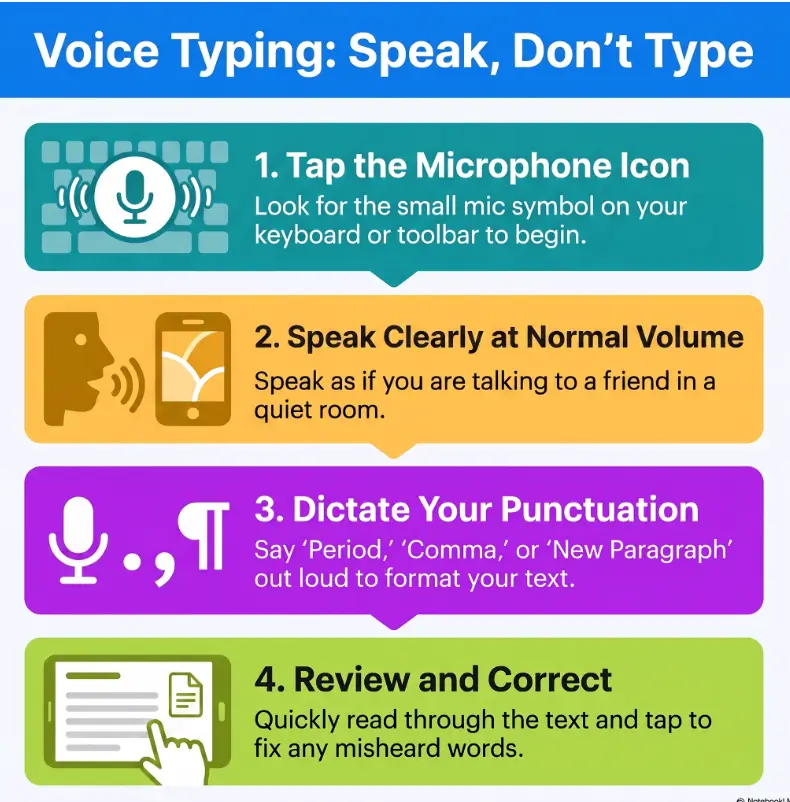
A useful rhythm is:
- Speak one sentence.
- Stop the microphone.
- Read that sentence.
- Correct or replace it.
- Continue only when it looks right.
Say the punctuation that keeps meaning intact
Automatic punctuation may be available on some phones, but it is not equally reliable in every language, accent, device, or setting. Four spoken commands cover most everyday messages:
- “Comma” for a short pause.
- “Period” to end a sentence.
- “Question mark” for a question.
- “New line” to separate ideas.
For example, dictate: “I have arrived comma and I am sitting near the front door period.” The punctuation makes the displayed message easier to review, especially when the font is enlarged.
Slow down for names, dates, and numbers
Unusual names and strings of numbers are common failure points. Pause before and after them. Spell a name when the phone repeatedly chooses the wrong word, and speak phone numbers in short groups rather than as one breathless stream.
For appointment times, say the date and time in a complete phrase: “Tuesday, August eleventh, at two thirty in the afternoon.” Then check whether the phone inserted the correct day, number, and time.
Move away from the television, fan, or running water
A phone cannot always separate the speaker from nearby dialogue. Turn down the television, pause beside a quiet wall, and hold the phone at a comfortable speaking distance. Moving closer is usually better than shouting.
The Safe Dictation Loop
1. OPEN
Choose the correct conversation.
2. TAP
Use the keyboard microphone.
3. SPEAK
Dictate one short sentence.
4. READ
Stop and inspect the words.
5. SEND
Confirm the recipient first.
Use the Tiny Review Habit That Prevents Big Mistakes
The most important voice-typing skill happens after the speaking stops. A five-second review can catch the single wrong word that changes a message from helpful to hazardous.
Check the recipient before checking the wording
Look at the contact name and profile photo at the top of the screen. This matters when family members have similar names, when a medical office and pharmacy appear close together, or when several group conversations use similar photographs.
A beautifully dictated message sent to the wrong person is still the wrong message.
Scan the words most likely to be misheard
- People’s names and place names
- Appointment dates and times
- Dollar amounts and payment instructions
- Medication and medical terms
- Addresses and phone numbers
- “Can” and “can’t”
- “Yes” and “no”
- Words such as “before,” “after,” “increase,” and “decrease”
Read the message aloud before sending
Reading aloud slows the eye just enough to notice missing words and strange substitutions. Compare the displayed sentence with what you meant to say, not merely with what sounds grammatically possible.
When a sentence contains several errors, deleting it and dictating it again is often easier than repairing each word individually.
The five-point send check
- Is the correct person or group open?
- Are names, dates, times, and numbers accurate?
- Did the phone change a negative word such as “can’t”?
- Does the message contain private information that should not be texted?
- Can the message wait long enough for one final read?
Never dictate passwords, PINs, or verification codes into a text
Passwords and one-time verification codes should not be sent to someone claiming to represent a bank, government agency, phone carrier, or technology company. A request for a code may be part of an account takeover attempt, even when the message looks polite and urgent.
The guide to verification codes for seniors explains how these codes work and why legitimate support staff generally should not ask you to read one back.
Key takeaway: For medical, financial, insurance, or legal messages, “almost correct” is not correct enough. Confirm every name, number, deadline, and recipient.
Make Dictated Text Easier to See and Correct
Voice typing reduces the need to find individual letters, but it does not eliminate reading. Enlarging text, increasing contrast, and simplifying the screen can make the proofreading step far more comfortable.
Enlarge text on an iPhone
Open Settings → Accessibility → Display & Text Size → Larger Text. Move the slider until messages can be read without leaning toward the screen. Turning on Larger Accessibility Sizes provides a wider range of sizes on supported interfaces.
Bold Text, Increase Contrast, and related display settings may also make contact names, controls, and message text easier to distinguish. Increase one setting at a time and test the Messages app before making another change.
Increase font and display size on Android
Open Settings and search for Font size, Display size, or Accessibility. Font size enlarges text, while display size may enlarge icons, controls, and other interface elements.
Do not push both settings to their maximum immediately. An interface can become so enlarged that the message field, microphone, or Send control moves off-screen. Adjust, test, and repeat.
Use magnification for final proofreading
iPhone Zoom and Android Magnification can temporarily enlarge one portion of the screen. This is helpful when a user can navigate at a moderate font size but needs a closer look at a medication name, number, or recipient.
Practice turning magnification on and off before using it during an important message. Otherwise, the enlarged screen may feel as though the controls have vanished when they are simply outside the visible area.
Reduce the number of things competing for attention
A senior may be able to read enlarged text yet still struggle with a crowded home screen, notification badges, unfamiliar icons, or several messaging apps. Keep the preferred messaging app in a predictable location and remove duplicate shortcuts when it is safe to do so.
The guide to simplifying an older parent’s phone covers app placement, notifications, contact shortcuts, and caregiver boundaries. For a focused display guide, see how to choose a comfortable phone font size for seniors.
Show me the nerdy details
Voice typing is a form of automatic speech recognition. The phone or connected speech service analyzes sound patterns, predicts words, and uses surrounding language to choose between alternatives. This is why context helps with ordinary sentences but may hurt when a name sounds like a common word.
Accuracy may change with microphone quality, background noise, speech rhythm, language settings, network availability, keyboard choice, and whether processing happens on the device or through an online service. Privacy practices also vary by device, feature, and account settings.
For practical use, the most effective response is not to chase a perfect accuracy percentage. Reduce ambiguity, dictate shorter segments, and review the few categories of words where an error matters most.
When the Microphone Is Missing or Voice Typing Fails
A missing microphone does not necessarily mean the phone is broken. The keyboard may be hidden, dictation may be turned off, the wrong keyboard may be active, or microphone access may have been denied.
First, confirm that the keyboard is open
Tap directly inside the message-writing field. The on-screen keyboard should appear. A microphone attached to the keyboard cannot be found while the keyboard itself is hidden.
Wait until the phone is actually listening
After tapping the microphone, pause until a listening symbol, moving waveform, tone, or Speak now prompt appears. Beginning immediately can cause the phone to miss the first word or two.
Check settings and permissions without changing everything
On an iPhone, confirm that Enable Dictation is still turned on under the Keyboard settings. On Android, check the active keyboard’s settings for voice typing and review microphone permissions for the relevant keyboard or speech service.
Avoid the tempting strategy of turning on every permission and resetting every setting. Small, reversible checks make it easier to identify the cause.
Restart before rebuilding the whole phone
- Close and reopen the messaging app.
- Switch away from the keyboard and return to it.
- Restart the phone.
- Check for operating-system and keyboard updates.
- Test dictation in a second app, such as Notes.
- Ask a trusted helper, carrier support representative, or device-accessibility specialist for assistance if the problem continues.
| What you notice | Likely cause | First thing to try |
|---|---|---|
| No keyboard microphone | Keyboard hidden or dictation disabled | Tap the text field, then check keyboard settings |
| Microphone appears but hears nothing | Permission denied or microphone blocked | Review microphone access and remove any case obstruction |
| First words are missing | Speaking before the listening prompt | Wait one second after tapping the microphone |
| Many incorrect words | Noise, wrong language, or long dictation | Move to a quiet room and dictate one sentence |
| Audio is recorded instead of text | Audio-message control was tapped | Open the keyboard and use its microphone |
| Words appear but Send is hard to find | Display size or magnification is too large | Reduce display size slightly and test again |
Key takeaway: Troubleshoot in a calm order: open the keyboard, check the listening signal, confirm dictation settings, review microphone access, restart, and test in another app.
Choose the Right Level of Accessibility Support
Basic voice typing is enough for many seniors, especially those who can speak clearly, identify the correct contact, and review enlarged text. Other users need a larger keyboard, a simplified interface, broader voice control, a screen reader, or help from a low-vision or occupational-therapy professional.
Who is likely to do well with basic dictation?
- Older adults who can speak clearly enough for the phone to understand most sentences
- People with reduced near vision who can still review enlarged text
- Users with arthritis, tremor, hand stiffness, or limited finger dexterity
- Seniors who remember a short sequence of steps
- People who mainly send low-risk everyday messages
When another tool may fit better
Voice typing may not be safe as a stand-alone solution when a user cannot reliably recognize the recipient, understand what the phone transcribed, or recover after opening the wrong screen. Speech changes may also cause repeated recognition errors.
In those situations, consider a mix of spoken navigation, screen reading, magnification, larger keyboard buttons, favorite-contact shortcuts, caregiver-assisted messaging, or an audio recorder. The goal is not to force one feature to carry the entire burden.
For users who still prefer touch input, the guide to larger keyboard buttons for older adults compares practical ways to reduce mistaps.
Good, better, and best setups for different needs
| Setup level | What it includes | Likely cost | Best for | What to verify |
|---|---|---|---|---|
| Good | Built-in dictation, larger text, one trusted practice contact | Usually no added cost | Independent users sending short everyday texts | The user can find the microphone and review the message |
| Better | Dictation plus simplified home screen, contact shortcuts, stylus or stand, and printed instructions | Low one-time accessory cost may apply | Users with vision and dexterity challenges | Accessories fit the phone and do not block microphones or controls |
| Best supported | Broader voice control, screen reader or magnification training, caregiver plan, or professional accessibility assessment | Varies by service, coverage, and location | Users with significant vision loss, cognitive challenges, or repeated high-risk errors | Training, privacy boundaries, ongoing support, and realistic goals |
Questions to ask before paying for an accessory or service
- Does the person need help with seeing, touching, remembering steps, or all three?
- Can the option be tested before purchase?
- Will it work with the current phone model and case?
- Does it simplify the task or add another device to charge and remember?
- Who will provide setup and repeat training?
- What happens when the phone receives a software update?
- Is there a return period or follow-up appointment?
- Does insurance, a rehabilitation program, veterans’ service, or community agency offer relevant support?
Paid help is most valuable when it identifies the actual barrier and teaches a routine the person can repeat. A bag of accessories without training can become an expensive drawer of good intentions.

FAQ: Voice Typing for Seniors
Is voice typing free on an iPhone or Android phone?
Built-in dictation is generally included with the phone and does not require a separate subscription. Some speech processing may use Wi-Fi or mobile data, depending on the device, language, settings, and feature.
Where is the voice-typing microphone?
Tap inside the message field to open the on-screen keyboard. Look for a microphone attached to the keyboard, often near the bottom edge on an iPhone or in the toolbar on an Android keyboard. A microphone beside the message box may record an audio message instead.
Can voice typing be used for regular text messages?
Yes. Dictation works in standard message fields and in many other apps that accept keyboard input, including notes, email, search boxes, and some online forms. Availability can vary by app and security setting.
How do you add punctuation while voice typing?
Say commands such as “comma,” “period,” “question mark,” and “new line.” Supported commands and automatic punctuation vary by device language and software version, so test them in a harmless practice message first.
Why does voice typing enter the wrong words?
Common causes include background noise, speaking before the listening signal, using the wrong keyboard language, dictating long paragraphs, unusual names, unclear microphone placement, and speech patterns the phone has difficulty recognizing.
Can a dictated message be corrected before sending?
Yes. Dictated words behave like normally typed text. Tap the message field, move the cursor if necessary, delete the incorrect word, and type or dictate the replacement. When several words are wrong, delete the sentence and say it again more slowly.
Is voice typing private?
Speech-processing and data-handling practices vary by device, keyboard, account settings, service, and whether processing occurs locally or online. Review the privacy information supplied with the phone or keyboard before dictating sensitive information.
Regardless of the processing method, avoid dictating passwords, PINs, one-time security codes, full financial account details, or highly confidential information into an ordinary text message.
Can voice typing send the message automatically?
Basic dictation normally enters words into the text field and leaves the Send action to the user. Separate voice assistants and advanced voice-control features may support spoken sending commands. Manual review before sending is the safer everyday setup for most beginners.
What if the senior cannot reliably review the dictated text?
Consider a screen reader, stronger magnification, caregiver-assisted messaging, audio messages, voice-control training, or an accessibility assessment. Basic dictation should not be the only safeguard when the user cannot confirm the recipient or meaning.
Your 15-Minute Next Step: Send One Safe Practice Text
The entire guide can be reduced to one small ritual. Set up the display, choose a trusted person, dictate one ordinary sentence, and review it before sending. That single completed loop teaches more than an hour spent wandering through settings.
Use the five-minute family test
- Increase the phone’s text size until the message field is comfortable to read.
- Open a conversation with a trusted family member or friend.
- Confirm the keyboard is visible.
- Tap the keyboard microphone, not the audio-message recorder.
- Wait for the phone to show that it is listening.
- Say: “Hi comma I am practicing voice typing period.”
- Stop the microphone.
- Read the message aloud.
- Check the recipient one final time.
- Tap Send and ask the recipient to confirm that ordinary text arrived.
Make one large-print reminder
Keep beside the phone
Tap microphone → speak slowly → stop → read → check name → send
Print the reminder in large type, write it on an index card, or save it as a note on the phone. Repeat the same practice on three different days. Soon the microphone stops feeling like a hidden trapdoor and becomes simply another way to write.
Final takeaway: The safest voice-typing habit is not “tap and talk.” It is “choose the person, tap, wait, speak, stop, read, and send.”
Last reviewed: 2026-09