
Organize your questions and next steps, then save your worksheet.
Summary and next steps
Set up navigation before travel and practice one familiar route while safely stopped.
- Save and verify the destination.
- Compare label size, contrast and spoken directions.
- Stop in a safe place before changing navigation settings during a journey.
Editorial maintenance: October 24, 2026. Summary layout, related links and technical metadata updated. This is not a full clinical review.
Senior-Friendly Navigation Guide
How to Make Map Apps Easier for Seniors
with Aging Eyes
A map app can place an entire city in one hand, yet still make the next turn feel oddly difficult. Small street names, pale roads, crowded icons, sudden prompts, and menus hidden behind tiny symbols can turn a simple trip into a tense guessing game.
The best fix is rarely a complicated senior mode. It is usually a careful sequence of ordinary adjustments: enlarge what matters, remove what does not, strengthen contrast, simplify the route, and let spoken directions carry more of the workload.
This guide is for older adults, family caregivers, and app designers who want navigation to feel calmer and more predictable. You will learn which settings to change first, which design mistakes cause the most trouble, and how to test improvements on a real trip rather than admiring them from the sofa.
Read the route
Make labels, controls, and turn information easier to see.
Reduce decisions
Remove distracting layers, alerts, and unnecessary choices.
Build confidence
Practice one familiar route until the process feels routine.
The goal is not a bigger map. It is a quieter, clearer conversation between the map and the person using it. 🧭
Snapshot
Who it is for: older adults with normal age-related vision changes, caregivers helping a parent, and accessibility-minded designers. What it solves: hard-to-read labels, cluttered screens, rushed prompts, and confusing controls. What comes next: a practical 15-minute setup, followed by one familiar test route.
Before You Change the Setup
This article offers general usability and accessibility guidance. It cannot determine whether a person is safe to drive or whether a new vision symptom needs medical attention. Sudden vision loss, double vision, flashing lights, a curtain-like shadow, severe eye pain, or a rapid change in navigation ability should be discussed promptly with an appropriate healthcare professional. Never adjust a phone while driving; make changes while parked or with help from a passenger.
Table of Contents
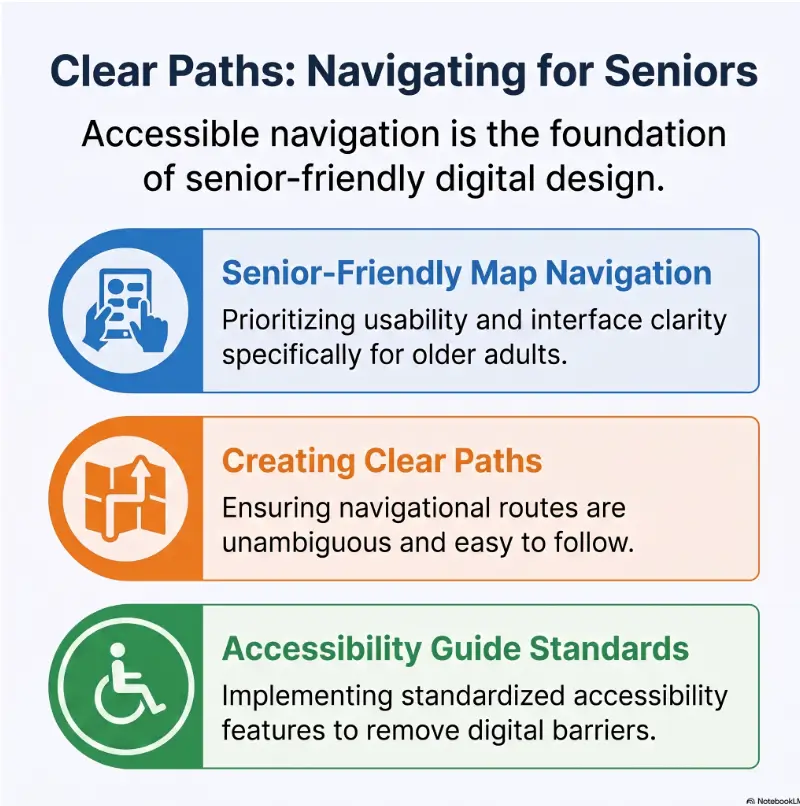
Why Tiny Maps Become Big Problems After 60
Age-related vision changes do not usually arrive like a light being switched off. They accumulate quietly. Fine print requires more distance, dim environments swallow detail, glare spreads across glossy screens, and the eyes may take longer to refocus between the road and a nearby phone.
Map apps place several visual demands on the user at once. The person must read labels, distinguish roads from buildings, locate the route line, interpret symbols, notice the next instruction, and compare all of that with the physical world outside. Each individual task may appear manageable. The pile-up is the problem.
Aging eyes do not fail overnight; interfaces quietly become harder to read
Presbyopia makes close focusing more difficult, while other common changes can reduce contrast sensitivity or increase sensitivity to glare. A person may still read a large destination name perfectly well but struggle with pale street labels laid over a multicolored map.
This distinction matters. A family member may assume the user needs a completely different phone when the real bottleneck is a small label, a washed-out screen, or a pair of progressive lenses being used at an awkward angle. Readers dealing with near-focus difficulty may find the guides on near-vision problems in seniors and progressive lenses and dizziness useful companion resources.
Navigation mistakes often begin before the first turn
A missed turn is not always caused by a late instruction. The trouble may begin when the destination is entered incorrectly, the wrong result is selected, the route preview is skipped, or the sound is too low to hear.
Before moving, the user should be able to answer four questions: Is this the correct destination? Is the travel mode correct? Is the phone charged and audible? Does the first instruction make sense? That 30-second pause can prevent ten minutes of circling.
Key takeaway
Treat route preparation as part of navigation. Confirm the destination, sound, travel mode, and first turn before the car moves or the walk begins.
The hidden cost of visual clutter on digital maps
Restaurants, transit stops, shops, traffic reports, satellite detail, neighborhood labels, sponsored pins, and small control icons may all compete with the route. More information can create less usable information.
Clutter also increases search time. The eye must repeatedly scan the screen to rediscover the route line or the next instruction. That is tiring during a long trip and risky when attention should remain on the road or sidewalk.
| What the user notices | Likely interface problem | First adjustment to try |
|---|---|---|
| Street names seem to disappear | Low contrast or excessive detail | Use a simpler map view and stronger display contrast |
| The route line is hard to follow | Too many layers or poor color separation | Remove optional layers and increase brightness carefully |
| Turns feel sudden | Prompts are missed or processed late | Raise guidance volume and preview the route |
| The wrong destination is chosen | Search results are too similar | Save verified destinations as favorites |
| Controls are tapped accidentally | Targets are small or crowded | Increase display scaling and use a stable phone mount |
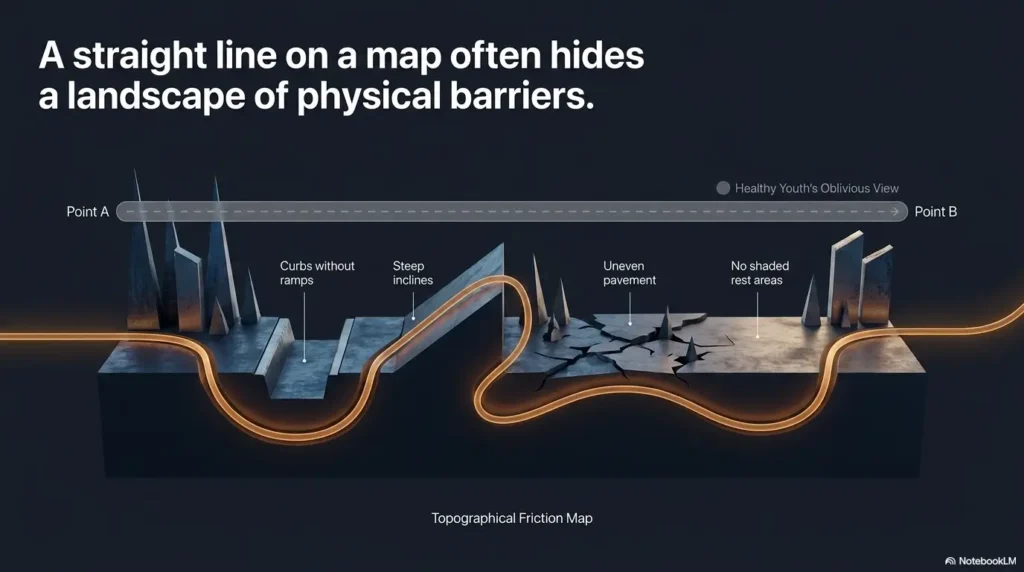
Start With Readability, Not More Features
The quickest improvement usually comes from changing the phone before changing the app. Larger text, increased display scaling, reduced transparency, stronger contrast, and sensible brightness can improve several apps at once.
Do not switch on every accessibility feature in one sitting. That produces an unfamiliar phone and makes it difficult to identify which change helped. Adjust one or two settings, test them, and keep only what improves real use.
Bigger text often helps before bigger buttons
Large buttons are useful, but map users often struggle first with information rather than control size. The destination name, arrival time, distance to the next turn, and street label must be readable without leaning toward the screen.
Increase the system text size gradually. Check the map app after each step because very large text can sometimes truncate place names or push important controls into a new position. The best setting is not the largest available setting; it is the largest setting that keeps essential information complete and predictable.
For a broader phone setup, see the guide to the best phone font size for seniors. Designers reviewing label sizing may also benefit from the practical discussion of font size for older readers.
Contrast matters more than a colorful map theme
A bright blue route can look bold in a product screenshot and still become hard to distinguish against water, traffic coloring, or a complex satellite view. The useful question is not whether the map looks attractive. It is whether the route, labels, and next instruction remain distinct at a glance.
Look for strong separation between text and background, clear differences between the selected route and alternate routes, and controls that do not vanish into the map. The Web Content Accessibility Guidelines provide a technical reference for readable color contrast, although real-world testing with older users remains essential.
Dark mode is a tool, not a universal cure
Dark mode may feel comfortable in a dim room or during evening use. In bright daylight, however, a dark map can reflect the surroundings and make small labels harder to see. Some users also experience blur or glowing edges around light text on a dark background.
Test both themes in the environments where navigation actually happens: a sunny car, a dim hallway, an overcast sidewalk, and a parked vehicle at night. Automatic switching can work well when the user understands why the appearance changes. Otherwise, consistency may be more valuable than automation.
Key takeaway
Choose the display mode that performs best in the user’s normal environment. A theme that looks elegant indoors may become a puddle of reflections in daylight.
The Screen Is Talking Too Much
Every icon asks for a tiny decision: Is this important? Should I tap it? Does it affect my route? A senior-friendly map reduces those questions before trying to answer them.
Simplification does not mean stripping away useful context. It means giving priority to the destination, route line, current location, next maneuver, and arrival information. Everything else should earn its space.
Remove layers that do not help this trip
Satellite imagery, terrain shading, transit overlays, bike routes, business pins, and traffic data can be valuable in the right moment. Leaving all of them visible all the time is the digital equivalent of covering a road sign with refrigerator magnets.
- Use the standard map view unless another view solves a specific problem.
- Turn off public transit or cycling layers when driving.
- Hide traffic detail if it makes the route line difficult to distinguish.
- Collapse search panels after the destination is selected.
- Dismiss unrelated notifications before starting navigation.
Save important destinations instead of searching every time
Repeated search creates repeated opportunities for error. A medical office may share a name with another branch. A supermarket may have several locations. A friend’s address may be easy to mistype.
Save verified destinations such as Home, Pharmacy, Doctor, Daughter, Community Center, and Favorite Grocery Store. Use labels that are meaningful to the person, not clever abbreviations invented by someone else.
When possible, include useful context in the saved name, such as “Eye Clinic, North Entrance” or “Community Center, Main Parking Lot.” The map pin should represent the place where the journey actually ends, not merely the middle of a large building.
Good, better, and best ways to simplify navigation
| Setup level | What it includes | Best for | Likely cost |
|---|---|---|---|
| Good | Larger text, louder guidance, saved destinations, standard map view | Independent users with mild reading difficulty | Free |
| Better | Good setup plus display scaling, reduced notifications, car mount, charging cable, route preview routine | Frequent drivers or walkers who miss prompts | Low one-time accessory cost |
| Best fit for complex needs | Personalized accessibility settings, voice control practice, low-vision evaluation, or occupational therapy input | Users with significant vision loss, field loss, or multiple access needs | Varies by service and coverage |
A paid accessory or professional service is not automatically better. Begin with free settings. Spend money only when a specific problem remains, such as unstable phone placement, insufficient audio, or difficulty operating the device by touch.
The CLEAR Map Method
1. Clarify
Confirm the correct destination and travel mode.
2. Large
Increase readable text, display size, and guidance volume.
3. Eliminate
Remove extra layers, alerts, and unused controls.
4. Rehearse
Test one familiar trip and adjust only what caused friction.
Make Turn-by-Turn Guidance Predictable
Good navigation guidance should feel rhythmic: prepare, confirm, act. Poor guidance feels like an interruption delivered half a breath before the turn.
Older users may need slightly more time to shift attention, locate a landmark, read a sign, and decide which lane is correct. Earlier information helps, but a storm of repeated prompts can be just as distracting as a late one.
Preview the first three movements before leaving
The beginning of a route is often the most confusing part because the user is still placing the phone, adjusting the volume, and orienting to the map. Review the first three steps while stationary.
- Identify the direction of the first movement.
- Confirm the first major road or landmark.
- Notice whether a lane change will be needed soon.
- Check whether the route begins from the correct side of a large property or parking lot.
Consistent language builds confidence
A user learns faster when the same words mean the same actions. Choose one preferred navigation app and practice its language before introducing alternatives. Switching among apps can change icon placement, route colors, lane instructions, and voice timing.
Family members should also use consistent terms. “Tap Start,” “choose the blue route,” and “look for the speaker symbol” are more useful than “press that thing over there.” Precision is kindness wearing sensible shoes.
Use reassurance without creating prompt fatigue
Repeated confirmation can help on long stretches: “Continue for five miles” tells the user the app has not fallen silent or stopped working. Yet constant alerts about minor traffic changes, speed checks, businesses, or alternate routes can dilute the important instructions.
Keep navigation voice guidance on, then reduce unrelated app notifications. The map should not have to compete with shopping alerts, news headlines, social messages, and the family group chat discovering animated stickers.
Key takeaway
A calm navigation setup gives important prompts more room. Raise guidance volume, preview the opening turns, and silence unrelated interruptions.
Use Voice Guidance and Phone Settings Together
Voice guidance can reduce visual strain, but it should not be treated as an all-or-nothing replacement for the screen. The most reliable setup uses spoken instructions for timing and a simple visual display for confirmation.
Let spoken directions carry the timing
Set guidance volume high enough to remain clear over road noise, ventilation, conversation, or a hearing aid program. Test it while parked with the engine and fan running. A volume that sounds generous in a quiet kitchen may dissolve into the cabin once the tires start humming.
Choose a voice that is clear and familiar. Speech rate matters too. Faster is not necessarily more efficient if the instruction must be mentally replayed.
Keep visual confirmation simple
The screen should answer a few immediate questions: How far until the next action? Which direction? What road or exit? When will I arrive? A user should not need to study the entire neighborhood during an active trip.
Place the phone in a stable mount where it can be glanced at without blocking the windshield or requiring a large head movement. Confirm local rules and vehicle safety guidance before choosing a mounting position.
Accessibility settings worth testing one at a time
- Text size: enlarges readable information in compatible apps.
- Display size or screen zoom: makes interface elements larger.
- Bold text: may improve label recognition for some users.
- Increased contrast: strengthens boundaries and control visibility.
- Reduced transparency: replaces translucent panels with more solid backgrounds.
- Voice control: may reduce the need for precise tapping.
- Screen reader: can support users who cannot reliably read the visual interface, although training is often helpful.
- Reduce motion: may make transitions less distracting for users sensitive to animated movement.
Apple and Google provide official accessibility guidance for their mobile systems. The names and locations of individual settings can change with software updates, so use the current instructions for the device rather than relying on an old screenshot.
Show me the nerdy details
Map readability depends on more than nominal font size. Effective legibility changes with viewing distance, screen density, letter weight, glare, contrast, visual field, motion, and how long the information remains visible.
Touch controls also need tolerance. A visually clear icon can still be hard to use when the tappable area is small, surrounded by other controls, or positioned where the hand blocks the label. Designers should test target spacing as well as appearance.
The strongest evaluation method combines measurable checks, such as contrast and target size, with observed performance on realistic tasks. A technically compliant screen may still fail when the user is walking in sunlight, holding a bag, wearing progressive lenses, or trying to interpret an unfamiliar intersection.
A Caregiver Setup That Preserves Independence
Helping an older adult with a map app can easily become an accidental takeover. The helper moves quickly, reorganizes everything, explains fifteen features, and leaves behind a phone that feels less familiar than before.
A better approach is collaborative. Ask what feels difficult, change one obstacle, and let the person perform the task. Independence grows through successful repetition, not through watching someone else operate the screen at impressive speed.
Teach the essential route, not the entire app
Most users do not need a tour of every feature. They need a reliable sequence for one common job.
- Open the map app.
- Choose a saved destination.
- Confirm the destination name and address.
- Select driving, walking, or transit.
- Check the first instruction.
- Start guidance.
- Know how to stop or return home.
Write the sequence in large print if memory or confidence is a concern. Use the exact words and icons shown on the person’s own phone. A generic instruction sheet is less useful when the device has a different operating system or app version.
Do not change the furniture in the dark
Moving apps, replacing the home-screen layout, changing the map app, and activating several accessibility tools at once may improve theoretical usability while destroying learned routines.
Preserve familiar positions whenever possible. After a necessary update, explain what moved and practice the route again. The broader guide to simplifying an older parent’s phone offers additional ways to reduce screen clutter without making the device feel foreign.
Short Story: The route that became familiar again
Helen could drive to her daughter’s house without help, but construction closed the usual entrance. Her map app offered a new route through three closely spaced turns. She missed the second turn twice and began saying she was “bad with phones.”
Her son first tried explaining lane guidance, alternate routes, traffic layers, and voice commands. Helen became quieter with every feature.
They started again. He enlarged the display slightly, saved the destination as “Anna, Side Driveway,” turned up spoken guidance, and removed the satellite layer. Then they drove the route together while Helen operated the phone.
On the second trip, she made every turn. The useful change was not technical brilliance. It was reducing the task until success had room to appear.
Common caregiver mistakes and safer alternatives
| Common mistake | Why it backfires | Safer alternative |
|---|---|---|
| Explaining every feature | Increases memory load | Teach one repeatable route sequence |
| Taking the phone and doing it | Removes practice and ownership | Let the user tap while the helper coaches |
| Changing several settings at once | Makes the phone unfamiliar | Change one setting, then test it |
| Correcting every small hesitation | Turns learning into an exam | Allow time for self-correction |
| Assuming difficulty means incapacity | Confuses a design barrier with lost ability | Identify the exact visual or procedural obstacle |
Key takeaway
Support should increase the older adult’s control. Let the user perform the steps, preserve familiar layouts, and measure confidence as carefully as accuracy.
Test It Like a Real Trip, Not a Demo
A map may look perfectly clear while everyone is seated at a kitchen table. That test excludes movement, glare, engine noise, divided attention, unfamiliar intersections, gloves, bags, progressive lenses, and the small jolt of uncertainty that arrives when the physical road does not resemble the screen.
Begin with a familiar destination
Choose a short route the user already knows. Familiarity allows the test to focus on the interface rather than on the anxiety of getting lost.
For the first trial, a passenger should observe without grabbing the phone. Note where the user pauses, leans forward, asks for repetition, taps the wrong control, or becomes uncertain. Those moments reveal more than a general question such as “Was it easy?”
Walking routes reveal problems driving tests miss
Walking navigation introduces different demands. The screen moves, sunlight changes, street names may be absent, and the phone may need to be operated with one hand. Spoken guidance can be difficult to hear in traffic, while headphones may reduce awareness of the surroundings.
Test whether the user can identify the direction of travel after leaving a building, recover after passing a turn, and understand which side of a street contains the destination. For people with significant low vision, orientation and mobility training or specialized navigation support may be more appropriate than additional app adjustments. The guides on low-vision walking guidance and low-vision travel planning provide further practical context.
Measure confidence instead of completion speed
A senior-friendly interface is not necessarily the one that produces the fastest first attempt. It is the one the person can use correctly, calmly, and repeatedly without needing rescue.
| Test question | Good sign | Needs adjustment |
|---|---|---|
| Can the user confirm the destination? | Reads the place and address independently | Selects a similar result or skips confirmation |
| Can the user start guidance? | Finds the control without prompting | Searches several menus or taps nearby icons |
| Are prompts understood in time? | Prepares calmly before the maneuver | Brakes, turns, or changes direction suddenly |
| Can the user recover from a missed turn? | Waits for rerouting and continues | Stops abruptly or repeatedly taps the screen |
| Can the user end the trip? | Recognizes arrival and closes navigation | Continues past the destination or cannot stop guidance |
When professional help may be worth considering
Free settings and family practice are often enough for mild age-related reading difficulty. More specialized support may be useful when the person has substantial field loss, central vision loss, double vision, repeated falls, difficulty interpreting surroundings, or ongoing navigation problems after reasonable adjustments.
Depending on the need, useful professionals may include an eye-care clinician, low-vision specialist, occupational therapist, certified driving rehabilitation specialist, or orientation and mobility specialist. Ask what tasks will be assessed, whether training uses the person’s own device, what costs may apply, and whether insurance or community programs cover any part of the service.
The National Eye Institute offers general information about low vision, rehabilitation, and questions to discuss with healthcare professionals.
Questions to ask before paying for help or equipment
- Which exact navigation problem is this meant to solve?
- Can we test a free setting before buying anything?
- Will the solution work with the user’s current phone and vehicle?
- Can it be returned if glare, sound, or mounting proves unsuitable?
- Does the professional provide hands-on training with real routes?
- Will the user receive written instructions in readable print?
- What ongoing subscription, accessory, or update costs should we expect?
FAQ
How can I make map text easier to read?
Start with the phone’s text-size and display-size settings. Increase them gradually, then reopen the map app to check whether street names, destination details, and turn instructions remain complete. Bold text, increased contrast, and reduced transparency may also help on compatible devices.
Which accessibility settings help older adults most?
The most useful starting points are usually larger text, larger display elements, stronger contrast, clear voice guidance, and fewer notifications. The ideal combination depends on whether the main problem is close focusing, glare, contrast, hearing, precise tapping, memory, or visual field loss.
Is dark mode always better for aging eyes?
No. Dark mode may reduce discomfort in dim settings, but some people find light text on a dark background blurry. It can also perform poorly in bright daylight because of reflections. Compare light and dark modes in the environments where the map will actually be used.
How large should map labels be?
There is no single size that works for every screen, viewing distance, or visual condition. Labels should be readable at the normal viewing distance without leaning forward, squinting, or losing important words through truncation. Designers should test size together with contrast, spacing, weight, and real-world viewing conditions.
Can voice navigation replace visual directions?
Voice guidance can carry much of the timing burden, but a simple visual confirmation remains useful for distance, lane direction, road names, and arrival information. Users with severe vision loss may use screen readers or specialized navigation tools, often with training.
Why do seniors miss turns even when GPS is working?
The prompt may be difficult to hear, the screen may be hard to read, the instruction may arrive during a demanding traffic moment, or the user may need more time to shift attention and choose a lane. Route previews, louder guidance, reduced notifications, and earlier preparation can help.
What is the easiest way to simplify a navigation app?
Save a few verified destinations, use the standard map view, remove unused layers, increase guidance volume, and practice the same start-to-finish routine. Avoid changing several features or apps simultaneously.
How can caregivers help without overwhelming the user?
Ask the older adult which step feels difficult, make one targeted adjustment, and let that person operate the phone during practice. Use consistent language, preserve familiar app positions, and teach only the essential route sequence first.
When could new map difficulty need medical attention?
A gradual need for larger print may reflect ordinary age-related change, but sudden or rapidly worsening difficulty should not be dismissed as a technology problem. Promptly seek appropriate medical guidance for sudden vision loss, double vision, flashing lights, a dark curtain or shadow, severe eye pain, or abrupt confusion.
Optional video: Open the video on YouTube (external site).
Improve One Setting in the Next 15 Minutes
Do not rebuild the entire phone. Choose one familiar destination and improve the route to that place.
- Minutes 1 to 3: Open the phone’s display settings and increase text or display size by one step.
- Minutes 4 to 6: Open the map app and save one verified destination with a plain, recognizable name.
- Minutes 7 to 9: Set guidance volume while parked and remove one unnecessary map layer.
- Minutes 10 to 12: Preview the first three route instructions.
- Minutes 13 to 15: Ask the user to repeat the entire sequence without assistance.
If the sequence works, stop there for today. Familiarity needs a little silence around it. Tomorrow, test the route in the real environment and change only the part that still causes friction.
The final test is wonderfully ordinary
Can the person choose a destination, understand the first turn, recover from a mistake, and arrive without feeling hurried? When the answer becomes yes, the map has stopped performing for the screen and started working for the human holding it.
Last reviewed: 2026-08
PUT THIS GUIDE TO WORK · INTERACTIVE WORKSHEET
Build your map-app practice plan
Use this worksheet alongside the article: How to Make Map Apps Easier for Seniors with Aging Eyes. Use the fields provided to organize your notes and next actions, then save your worksheet.
Your entries stay in this page and are cleared when you reload. No account is needed. Saved files are downloaded only to your device.
This card organizes a discussion or task. It does not provide diagnosis, treatment, medication timing, driving clearance, or professional approval. Copy clinical instructions exactly and ask the professional about uncertainty.
How to use your result
Save the worksheet before leaving this page. Recheck any quote, date, or instruction with the relevant provider, pharmacist, manufacturer, or official organization. A completed checklist means you recorded the steps, not that an outcome is guaranteed.
Worksheet added October 20, 2026. Read the article above for context and its stated review scope.