
Organize your questions and next steps, then save your worksheet.
Summary and next steps
Choose one daily phone task, change one setting and make sure the whole task still works.
- Record the current setting so it can be restored.
- Try a modest text or display adjustment.
- Test a message, keyboard and important app for hidden controls.
Editorial maintenance: October 24, 2026. Summary layout, related links and technical metadata updated. This is not a full clinical review.

Senior phone setup guide
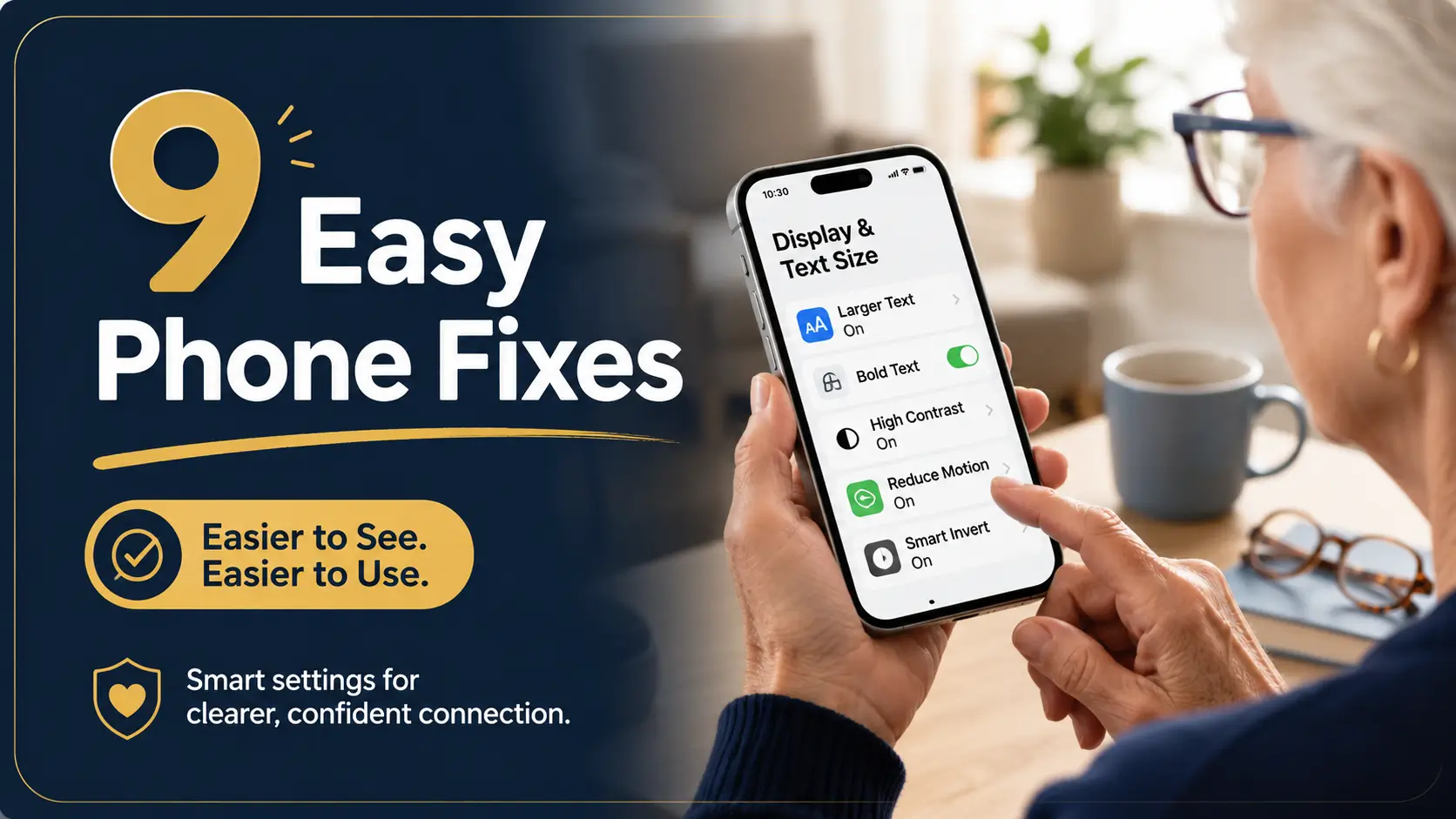
Smartphone Settings for Seniors with Presbyopia:
9 Easy Fixes
A phone can feel friendly in the store and then turn into a tiny glass puzzle at home. Text messages blur. Medication reminders vanish before anyone can read them. A bank app asks for a verification code, and suddenly the screen feels less like a helpful tool and more like a locked cabinet with very small labels.
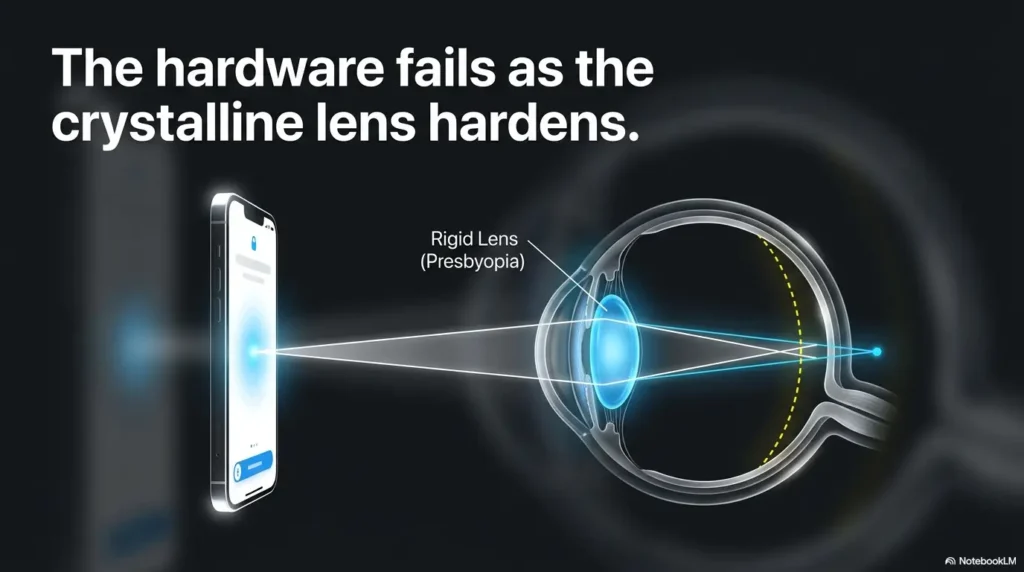
Presbyopia, the age-related difficulty of focusing up close, does not mean a senior needs to give up their smartphone. It usually means the phone needs a more thoughtful setup. Bigger text helps, but it is only one instrument in the little orchestra: contrast, glare control, keyboard comfort, notification timing, voice input, and magnifier shortcuts all matter.
This guide is written for seniors, caregivers, and adult children who want the phone to be easier without turning every screen into a billboard. The goal is not “maximum size.” The goal is readable, calm, repeatable use in real life: texting a grandchild, checking an appointment, reading a label, and finding the right button without a magnifying-glass treasure hunt.
Read faster
Make texts, menus, and reminders easier without breaking app layouts.
Tap with less strain
Reduce tiny-key fatigue with voice typing, better keyboards, and cleaner alerts.
Avoid setup mistakes
Learn which changes help, which backfire, and when to ask an eye care professional.
Start small, test with real apps, and let the senior’s hands decide what stays. 📱
Snapshot
This article is for seniors, caregivers, and adult children setting up a phone for easier near reading. You will learn which smartphone settings help with presbyopia, which changes can make the screen harder to use, and how to complete a practical 10-minute phone tune-up without buying anything first.
Table of Contents
Before You Act: Phone Settings Help, But They Are Not an Eye Exam
Smartphone accessibility settings can make reading easier, typing less tiring, and daily phone tasks more predictable. They cannot diagnose vision changes, update a prescription, or explain sudden blur.
That distinction matters. Presbyopia usually develops gradually, often showing up as “my arms are not long enough anymore.” Sudden blurry vision, new double vision, eye pain, flashes, a curtain-like shadow, or a sharp change in one eye should be checked promptly by a qualified eye care professional.
Before you act
Use this guide as a practical setup checklist, not medical advice. If vision symptoms are new, worsening, painful, one-sided, or accompanied by dizziness, headache, weakness, confusion, or trouble speaking, seek medical guidance rather than adjusting the screen and hoping the problem fades.
For routine near-vision frustration, phone settings are a sensible first support. For sudden changes, the phone should not become a waiting room.
The safest way to use this article is simple: improve the phone today, then make sure the eyes are being cared for on schedule. Settings and prescriptions work best as a duet, not a duel.
Key takeaway
If the problem is gradual near-reading strain, settings may help quickly. If the problem is sudden, painful, or unusual, treat it as a health question first and a phone question second.
Who Should Use These Settings, And Who Should Not Rely on Them Alone
Best fit: seniors who squint at texts, menus, and medication labels
This guide is especially useful when the phone is almost usable but not comfortable. Maybe text messages require a squint. Maybe medication reminders are readable only under a lamp. Maybe the senior keeps tapping the wrong line because the screen is crowded.
That “almost” stage is the golden window. Small changes can restore confidence before frustration hardens into avoidance.
Best fit: caregivers setting up a parent’s phone before frustration blooms
Caregivers often want to fix everything in one heroic afternoon. Noble. Dangerous. A phone that looks clear to a 42-year-old daughter may still feel crowded, slippery, or confusing to a 78-year-old father.
The better approach is to change one setting, test one real task, then ask the senior to do it with their own hands. That small pause prevents many “I fixed your phone, why are you not using it?” arguments.
Not enough: sudden vision changes, eye pain, or blurry vision that appears quickly
Aging eyes can change gradually, but sudden symptoms deserve respect. If a senior suddenly cannot read the phone when they could yesterday, do not assume the font size is the villain wearing a tiny cape.
Start with safety. The American Academy of Ophthalmology has guidance on eye emergencies, and the National Eye Institute offers general eye health information for older adults and families.
The “reader glasses plus phone settings” sweet spot
Phone settings work best when they support the right glasses, not replace them. If a senior is wearing old readers, borrowing a spouse’s glasses, or using progressives that feel awkward up close, screen changes may help but still leave the person tired.
For a deeper next step, see this guide on near vision problems in seniors. It can help separate normal near-vision frustration from changes worth discussing at an eye appointment.
Short Story: The Bank Code That Kept Disappearing
Marilyn could read paperbacks with her drugstore readers, but her banking app felt like a timed exam. The verification code arrived, flashed on the lock screen, and disappeared before she could copy it.
Her son increased the text size to the maximum. That made the code larger, but now the “Continue” button hid below the screen. Marilyn sighed, pushed the phone back, and said she would “do it later.”
The fix was quieter: text size up one level, bold text on, longer notification banners, and a saved note showing where the code usually appears. They tested the bank app twice while sitting at the kitchen table.
Nothing magical happened. That was the magic. The phone stopped asking Marilyn to hurry.
Start With Text Size, Not Every Setting at Once
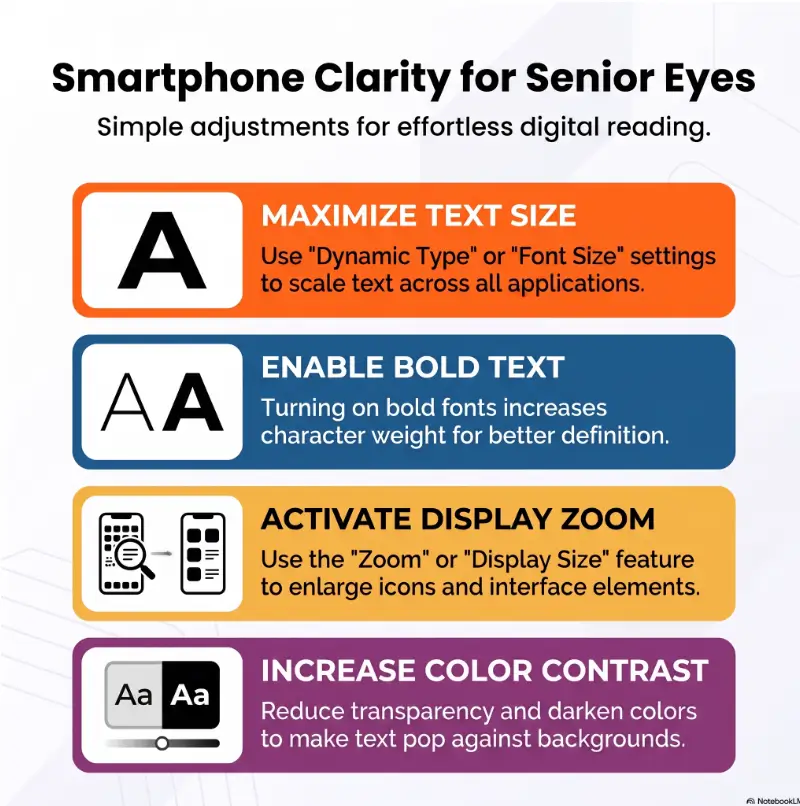
The first fix for smartphone settings for seniors with presbyopia is usually text size. Not display zoom. Not a new phone. Not a dramatic full-screen makeover. Start with the letters.
iPhone path: Text Size and Larger Accessibility Sizes
On iPhone, the usual starting path is Settings, Display & Brightness, Text Size. For more room, Accessibility includes additional display and text options such as larger text, bold text, button shapes, and contrast controls.
The names can shift slightly with iOS updates, but the principle stays the same: increase text gradually, then test it in real apps. Apple’s official iPhone accessibility guide is useful when you want current menu names and device-specific steps.
Android path: Font Size and Display Size
On Android, look under Settings, Accessibility, Display size and text, or similar wording depending on the phone brand. Many Android phones let you adjust font size and display size separately.
That separation is useful. Font size changes the text. Display size changes more of the whole screen, including icons and layout spacing. For presbyopia, font size is often the cleaner first move.
Why “one notch bigger” often works better than “maximum size”
Maximum text size sounds kind. In practice, it can make menus wrap awkwardly, buttons move out of sight, and forms become harder to finish. The phone becomes louder, not clearer.
Try one notch first. Then read one text message, one weather screen, and one app that matters, such as a pharmacy, bank, calendar, or rideshare app.
Mini test: the 3-app readability check
- Read a full text message without pinching or squinting.
- Check the weather without missing the high, low, or alert line.
- Open a bank, pharmacy, or appointment app and confirm no buttons are hidden.
For a focused font-size comparison, bookmark this related guide on the best phone font size for seniors.
The Screen Zoom Trap: When Bigger Starts Hiding Things
Screen zoom can be helpful, but it is a stronger medicine than text size. It enlarges more of the interface, which can make the screen feel simpler at first and cramped five minutes later.
The difference between font size and display zoom
Font size changes letters. Display zoom changes the scale of the screen elements. That may include icons, menus, spacing, and app controls.
If a senior mainly struggles to read words, start with font size. If they also struggle to tap icons, see buttons, or locate app labels, then display zoom may be worth testing.
Why oversized layouts can hide buttons and cut off forms
Many apps are designed by people with young eyes, large monitors, and suspicious confidence. When you enlarge the whole screen, a sign-in form may suddenly require more scrolling, and a “Submit” button may slip below the fold.
This matters most for banks, medical portals, pharmacy refills, airline check-ins, and verification code screens. Those are exactly the places where a senior should not feel rushed or lost.
When temporary zoom is smarter than permanent zoom
Temporary zoom can be excellent for occasional tiny print. It lets a senior zoom in on one stubborn receipt, map label, menu, or app screen without making the entire phone permanently oversized.
Caregivers should set up a simple shortcut if possible, then practice it. A shortcut no one can remember is just a secret door painted on the wall.
Key takeaway
Permanent display zoom is best when icons and controls are hard to see. Temporary zoom is better when only occasional fine print causes trouble.
Contrast, Glare, and Dark Mode: The Quiet Readability Trio
Text size gets the applause. Contrast does the plumbing. Without enough contrast, large text can still look foggy, especially on modern gray menus that seem designed by a cloud.
Bold Text and Button Shapes: small switches with big payoff
Bold text can make thin letters easier to recognize, especially in menus and messaging apps. Button shapes can help seniors spot what is tappable instead of guessing whether a word is a label, a link, or decorative furniture.
These are often better early changes than maxing out font size. They improve signal without wrecking layout.
Reduce White Point and brightness: glare is not solved by shouting light at it
Full brightness can make a screen feel harsher, not clearer. For glare-sensitive eyes, especially in the evening, reducing the intensity of bright whites may be more comfortable than simply dragging brightness up and down all day.
Some seniors prefer auto-brightness because it adapts. Others dislike it because the phone seems to change its mind at the worst possible moment. Test both for a full day before deciding.
If glare is a recurring problem, this related guide on Reduce White Point vs Night Shift can help explain the difference between dimming glare and warming color temperature.
Dark Mode is not a magic cure
Dark mode can be pleasant in a dim bedroom or living room. It may also reduce the feeling of screen glare at night. But it does not automatically make small text easier for every senior.
For long articles, forms, and small labels, light mode can sometimes be more readable. The best test is charmingly unglamorous: open the same paragraph in both modes and ask which one is easier after 30 seconds, not which one looks more modern.
The four-part readability framework
The Senior Phone Readability Loop
1. Size
Increase text one step, not all the way.
2. Contrast
Use bold text, stronger contrast, and clearer buttons.
3. Glare
Adjust brightness, warmth, and white intensity.
4. Test
Check texting, reminders, and one important account app.
Keyboard, Notifications, and Voice Typing: Fix the Daily Friction
Reading is only half the story. A phone also asks seniors to type, tap, respond, dismiss, approve, confirm, and remember. Presbyopia turns those tiny moments into tiny paper cuts.
Larger keyboard options and third-party keyboard caution
Some phones let users enlarge the keyboard, adjust display size, or use a simplified keyboard layout. A larger phone can also help, but it is not always the first or cheapest fix.
Be careful with third-party keyboards. They may offer bigger keys, but they can also introduce privacy questions, new settings, or unfamiliar layouts. Before installing one, compare privacy controls, permissions, reviews, and whether the senior can comfortably return to the old keyboard if needed.
For a more focused setup guide, read larger keyboard buttons for older adults.
Voice typing for texts, searches, and short replies
Voice typing is often the most underrated senior phone setting. It does not need to write a novel. It only needs to handle “I’m on my way,” “What time is the appointment?” or “Call me when you get home.”
Practice in a low-stakes place first, such as a note app. Then move to text messages. Teach one correction skill, such as backspace or tapping the wrong word, because voice typing will occasionally hear “pharmacy” and produce “farm sea.” The machine has confidence. That is not the same as wisdom.
Notifications that seniors can read before they vanish
For many seniors, the problem is not only tiny text. It is disappearing text. Missed calls, appointment reminders, medication alerts, and verification codes need enough time on screen to be useful.
Consider lock screen previews, persistent banners, larger notification text, and louder or clearer alert sounds. Balance this with privacy. A lock screen preview may be convenient for appointment reminders, but not ideal for sensitive health, banking, or family messages.
Notification cleanup checklist
- Keep calls, texts, calendar, medication, pharmacy, and ride alerts easy to see.
- Turn off noisy shopping, game, and random app alerts that train the senior to ignore the phone.
- Use persistent banners for reminders that should not vanish instantly.
- Check lock screen privacy before showing message previews.
- Test a real appointment reminder while the phone is locked.
Verification codes are a special case. Seniors who struggle with small codes may benefit from this related article on senior verification codes.
Good / Better / Best setup for typing and alerts
| Setup level | Best for | What to change | Money note |
|---|---|---|---|
| Good | Basic texting and reminders | Increase text size, turn on bold text, clean up alerts | Usually free |
| Better | Frequent typos or missed alerts | Add voice typing practice, persistent banners, easier keyboard access | Usually free unless using accessories |
| Best | Complex needs or caregiver setup | Combine accessibility settings, shortcuts, privacy review, and app-by-app testing | May justify paid setup help if family support is limited |
Camera-as-Magnifier: The Reading Tool Already in the Pocket
Every senior with a smartphone is already carrying a pocket magnifier. It may not look like one. It looks like the camera.
iPhone Magnifier for menus, labels, receipts, and forms
iPhone includes a Magnifier tool that can enlarge nearby text and help with small print. It can be useful for restaurant menus, medicine bottles, receipts, forms, thermostat screens, and packaging labels.
The important part is access. If Magnifier is buried in settings, it may as well be in a shoebox under winter scarves. Put it somewhere easy, such as the Home Screen, Control Center, or an accessibility shortcut when appropriate.
Android magnification tools and camera zoom shortcuts
Android phones often include magnification options in Accessibility, plus camera zoom for quick reading. The exact path depends on the phone maker, but the practical goal is the same: make small print readable in three taps or fewer.
Try the camera first for labels and menus. It is familiar, fast, and does not require the senior to learn a new app immediately.
Flashlight plus magnifier: useful in pharmacies and restaurants
The camera zoom works better with enough light. In a dim restaurant or pharmacy aisle, a gentle flashlight can make the difference between “I think this says…” and “Yes, this is the right label.”
Careful, though. A harsh phone flashlight on glossy packaging can create glare. Angle the phone slightly rather than shining straight down.
For iPhone users, this related guide on using Back Tap for Magnifier may help if the senior likes physical shortcuts.
Key takeaway
For small print outside the phone, the camera or Magnifier often beats squinting. The best magnifier is the one the senior can open quickly.
Common Mistakes That Make Phone Reading Worse
Most bad senior phone setups begin with good intentions and too much enthusiasm. The caregiver changes twelve settings, the senior nods politely, and two days later nobody can find the calendar.
Mistake 1: maxing every visual setting in one sweep
Large text, display zoom, bold text, high contrast, dark mode, and bigger icons can help individually. All at once, they can make the phone feel unfamiliar. Change one or two settings, test, then continue.
Mistake 2: testing only the Home Screen
The Home Screen is not the real test. A senior does not live inside a tidy grid of icons. They live in texts, weather alerts, reminders, pharmacy refills, appointment portals, and calls from family.
Test the messy places. That is where readability earns its tea.
Mistake 3: ignoring lock screen readability
Many important messages are read before the phone is unlocked. A missed call, medication reminder, or appointment alert should be visible enough to act on, but private enough for the senior’s comfort.
Mistake 4: setting up the phone for the caregiver, not the senior
The best setup is not the one that looks neat to the helper. It is the one the senior can use when tired, in a waiting room, under grocery-store lighting, with a little pressure in the air.
| Common mistake | Why it backfires | Safer alternative |
|---|---|---|
| Text size set to maximum immediately | Buttons may hide and forms may wrap badly | Increase one step, then test three apps |
| Dark mode forced everywhere | Small text may become harder for some readers | Compare the same paragraph in light and dark mode |
| All alerts left on | Important reminders get buried in noise | Keep essential alerts, quiet the clutter |
| Caregiver does all the testing | The phone may work for the helper, not the senior | Ask the senior to complete real tasks |
| Only blue-light settings changed | Warm color does not fix tiny text or weak contrast | Adjust size, contrast, glare, and notifications together |
Show me the nerdy details
Presbyopia affects near focusing, but phone readability depends on several design variables at once: character size, stroke weight, line spacing, contrast ratio, glare, viewing distance, finger target size, timeout speed, and cognitive load. A senior may technically “see” the text but still fatigue quickly if the interface demands constant zooming, scrolling, correction, and decision-making. That is why a good setup tests tasks, not just settings. Reading one large sentence is easy. Finding a verification code, switching apps, entering it, and confirming a transaction is a much harder visual workflow.
Free Settings vs Paid Help: What Is Worth Considering?
Most smartphone readability improvements are free. That is good news. Before buying a new phone, premium screen protector, stylus, larger tablet, app, or setup service, make sure the free settings have been tested properly.
Free settings to try before spending money
- Text size one level larger
- Bold text or stronger contrast
- Display size or zoom, tested carefully
- Reduced white intensity or adjusted brightness
- Voice typing practice
- Persistent notification banners for key alerts
- Camera or Magnifier shortcut
If those changes solve the problem, stop there. A free setting that works is not a lesser solution. It is a quiet little victory wearing house slippers.
When accessories may help
Accessories can help when the barrier is physical comfort, glare, or tapping accuracy. A matte screen protector may reduce reflections for some users. A stylus may help with small touch targets. A phone stand can reduce hand fatigue while reading recipes, messages, or appointment instructions.
Before paying, compare return policies, ease of cleaning, whether the accessory works with the current case, and whether the senior can use it without extra fuss. The best gadget is boring in the right way.
If glare is the main complaint, compare this with the practical guidance in anti-glare screen protector tips.
When paid setup help may be worth it
Paid help may be reasonable when the senior lives alone, family support is limited, or the phone is tied to medical portals, transportation, online banking, or caregiver communication. The value is not just changing settings. The value is teaching the senior how to repeat key tasks calmly.
Ask any helper or service provider to explain what they will change, what they will not access, how privacy will be protected, and whether they will leave a simple written setup note.
| Option | Best for | Questions to ask before paying | Watch out for |
|---|---|---|---|
| Free phone settings | Most seniors with mild to moderate near-reading frustration | Can we test texts, reminders, and one important app? | Changing too many settings at once |
| Accessories | Glare, tapping trouble, hand fatigue, reading at a table | Can it be returned? Is it easy to clean and carry? | Buying before knowing the real problem |
| Paid setup help | Complex setup, limited family support, privacy-sensitive apps | Will you protect passwords and leave written instructions? | Helpers who rush or make changes without teaching |
| New phone or tablet | Old device, tiny screen, poor battery, unsupported software | Will a larger screen solve the daily tasks better? | Buying size without checking weight and grip comfort |
Key takeaway
Start with free settings. Spend money only after you know whether the problem is text size, glare, tapping accuracy, training, or an outdated device.
The 10-Minute Phone Tune-Up Checklist
This is the practical center of the article. You can do it at a kitchen table, in a living room, or during a quiet visit. Keep the mood calm. No one learns well while feeling judged by a rectangle.
Step 1: increase text size one level
Move the text size up one notch. Do not change display zoom yet unless icons are also hard to see. Open a text message and ask the senior to read it naturally, not perform readability theater.
Step 2: turn on bold text or stronger contrast
If the letters still look thin, turn on bold text. If menus feel faint, increase contrast or button visibility where available. This often makes the screen clearer without making everything larger.
Step 3: test three real tasks
- Send or read a text message.
- Search for a simple phrase using typed or voice input.
- Check an appointment, medication reminder, or calendar alert.
Do not skip the third task. Reminders are where phone readability becomes daily safety, not just convenience.
Step 4: save Magnifier or camera zoom to an easy shortcut
Put the magnifier tool where it can be found. Then practice reading one real object: a receipt, pill bottle, mail label, or menu. The senior should open it without coaching before the setup is considered finished.
The 10-minute tune-up card
- Text size up one level.
- Bold text or stronger contrast on.
- Brightness adjusted for comfort, not maximum glare.
- Dark mode tested against light mode using the same paragraph.
- Voice typing tested in a note or text.
- Important alerts set to stay visible long enough.
- Camera or Magnifier shortcut practiced once.
- Senior completes a text, search, and reminder check without the helper touching the phone.
FAQ: Smartphone Settings for Seniors with Presbyopia
What font size is best for seniors with presbyopia?
The best font size is the smallest size that feels comfortable during real tasks. Start one level larger than the current setting, then test texting, weather, reminders, and one important app. Maximum size is not always best because it can hide buttons and break forms.
Is iPhone or Android easier for seniors with poor near vision?
Either can work well. The easier phone is usually the one the senior already knows, with text size, contrast, notifications, voice typing, and magnifier access adjusted properly. Switching systems can help in some cases, but it also creates a learning curve.
Should seniors use dark mode or light mode?
Dark mode may help in low-light rooms or at night. Light mode may be easier for forms, long reading, and small text. Test both with the same paragraph before choosing. Comfort matters more than the setting’s reputation.
How can I make text messages easier to read?
Increase text size one step, turn on bold text if needed, improve contrast, and check whether message previews are readable on the lock screen. Also teach voice typing for short replies so the senior does not have to peck at tiny keys every time.
What setting helps seniors read small print in restaurants?
The camera zoom or built-in Magnifier is often the best tool for restaurant menus, receipts, and labels. Add gentle flashlight use if the room is dim, but angle the phone to avoid glare on glossy paper.
Can voice typing help seniors who struggle with tiny keyboards?
Yes, especially for short texts and searches. Practice in a notes app first, then move to messages. Voice typing is most helpful when the senior also learns how to correct one mistaken word calmly.
How do I make notifications stay visible longer?
Look for persistent banner alerts, lock screen preview settings, notification style options, and reminder settings inside key apps. Keep privacy in mind, especially for health, banking, and personal messages.
What should I change first on a parent’s phone?
Change text size one level, turn on bold text if needed, and test three real tasks: read a text, search for something, and check an appointment reminder. Let your parent perform the test. Their hands get the final vote.
Optional video: Open the video on YouTube (external site).
Your Final 15-Minute Reset: Make the Phone Prove Itself
The best smartphone settings for seniors with presbyopia are not the most dramatic settings. They are the settings that make ordinary tasks feel ordinary again.
Set a timer for 15 minutes. Increase text size one level, turn on bold text or stronger contrast, test light mode against dark mode, clean up one noisy notification group, and place the camera or Magnifier where it can be opened quickly.
Then do the most important step: hand the phone back. Ask the senior to read a message, send a short reply, check a reminder, and zoom in on a real label. If those four tasks feel calmer, the setup is working. If not, adjust one thing at a time.
Last practical nudge
A senior-friendly phone is not a phone with giant everything. It is a phone that gives the eyes, fingers, and memory fewer little battles to fight.
Last reviewed: 2026-08
PUT THIS GUIDE TO WORK · INTERACTIVE WORKSHEET
Phone-text readability preview
Use this worksheet alongside the article: Smartphone Settings for Seniors with Presbyopia: 9 Easy Fixes. Use the fields provided to organize your notes and next actions, then save your worksheet.
Your entries stay in this page and are cleared when you reload. No account is needed. Saved files are downloaded only to your device.
Compare comfort and recognition under your actual conditions. A screen sample cannot reproduce printed size, glare, a device display, color accuracy, or all lighting conditions.
How to use your result
Save the worksheet before leaving this page. Recheck any quote, date, or instruction with the relevant provider, pharmacist, manufacturer, or official organization. A completed checklist means you recorded the steps, not that an outcome is guaranteed.
Worksheet added October 20, 2026. Read the article above for context and its stated review scope.