
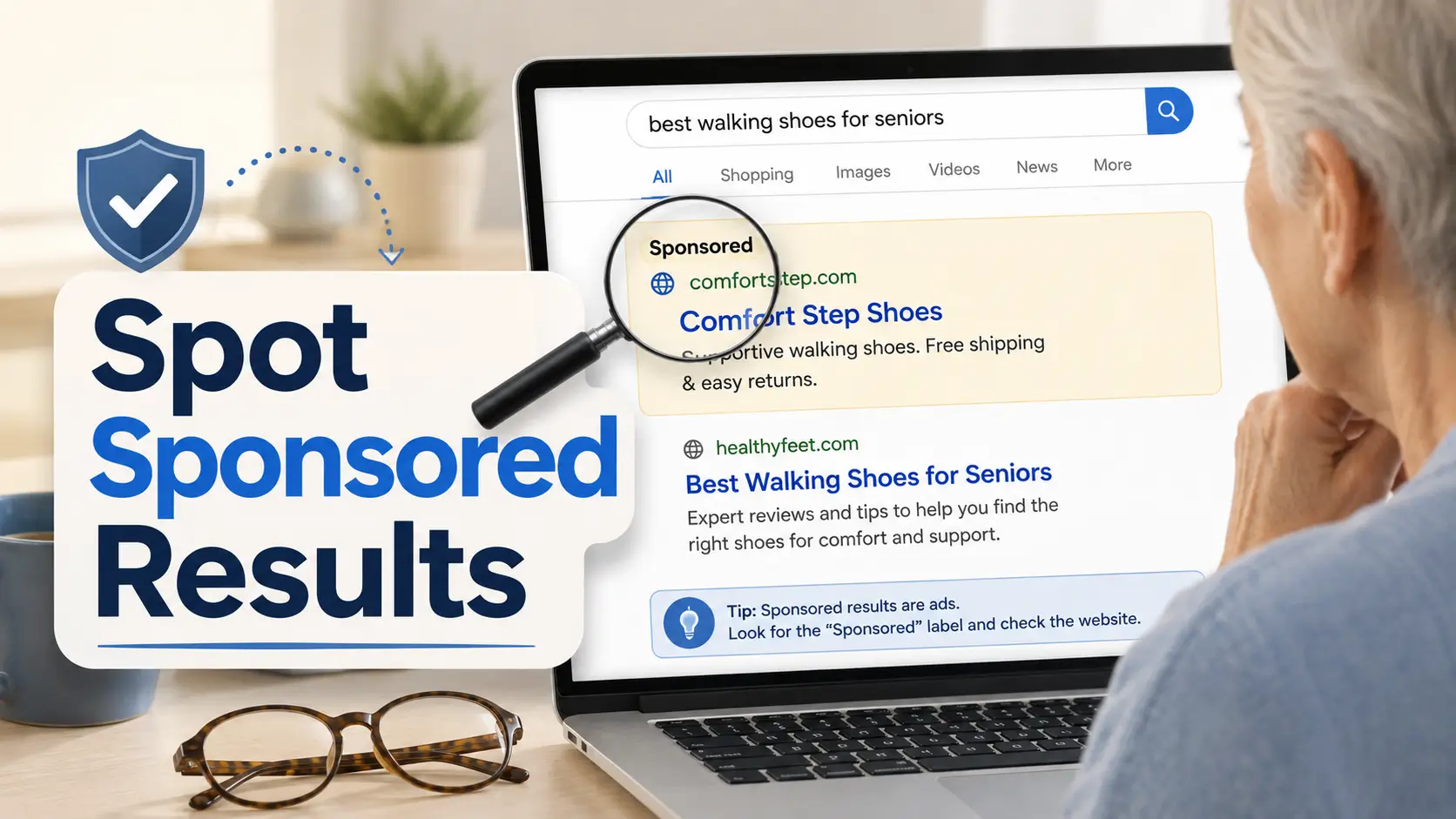
Organize your questions and next steps, then save your worksheet.
Summary and next steps
Learn how to spot sponsored search results, read domains, enlarge tiny labels, and avoid risky clicks.
Editorial maintenance: October 24, 2026. Summary layout, related links and technical metadata updated. This is not a full clinical review.
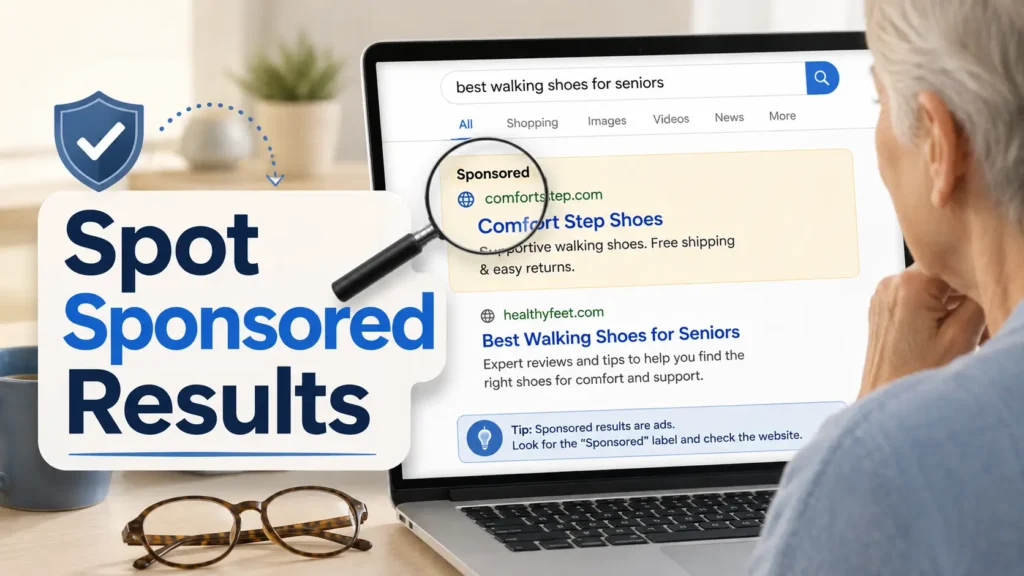
Safer Search for Aging Eyes
How to Tell Ads from Real Search Resultswith Aging Eyes
A search page can look deceptively simple. Type a question, scan the first blue headline, click. Yet when small labels, pale text, crowded mobile layouts, or reduced contrast make the page harder to parse, one tiny word such as Sponsored can disappear into the visual noise.
That matters because the first result is not automatically the most useful result. A paid listing may be perfectly legitimate, but it is still paid placement. When you are searching for Medicare help, a bank login, an insurance company, a prescription question, or a government service, knowing which kind of result you are looking at gives you an extra moment to check where the click will actually take you.
This guide gives you a repeatable way to slow the page down without turning every search into detective work. You will learn what to look for, how to enlarge the screen, how to read a web address, and when a simple free adjustment is enough.
One useful habit: label, domain, compare, click. Four steps can turn an impulsive search into an informed one. 🔎
Snapshot
This guide is for older adults, caregivers, and anyone who finds modern search pages visually crowded. It explains how to distinguish sponsored listings from organic results, make labels and domains easier to read, reduce risky clicks, and decide whether free accessibility settings or additional low-vision tools would be useful.
Table of Contents
Fast Answer
To tell ads from real search results with aging eyes, pause before clicking and look for labels such as Sponsored or Ad near the website information. Enlarge the page if needed, read the destination domain, and compare two or three results. A result appearing first tells you where it was placed, not whether it is automatically the safest or most useful choice.
Before You Click: A Practical Safety Note
This article teaches search-reading habits, not a way to guarantee that a website is safe. Search interfaces also change over time. For banking, government benefits, medical accounts, insurance, or other sensitive tasks, confirm the destination through an official source you already trust. If vision changes are making ordinary screens consistently difficult to use, an eye-care professional or low-vision rehabilitation specialist can help you review accessibility options.
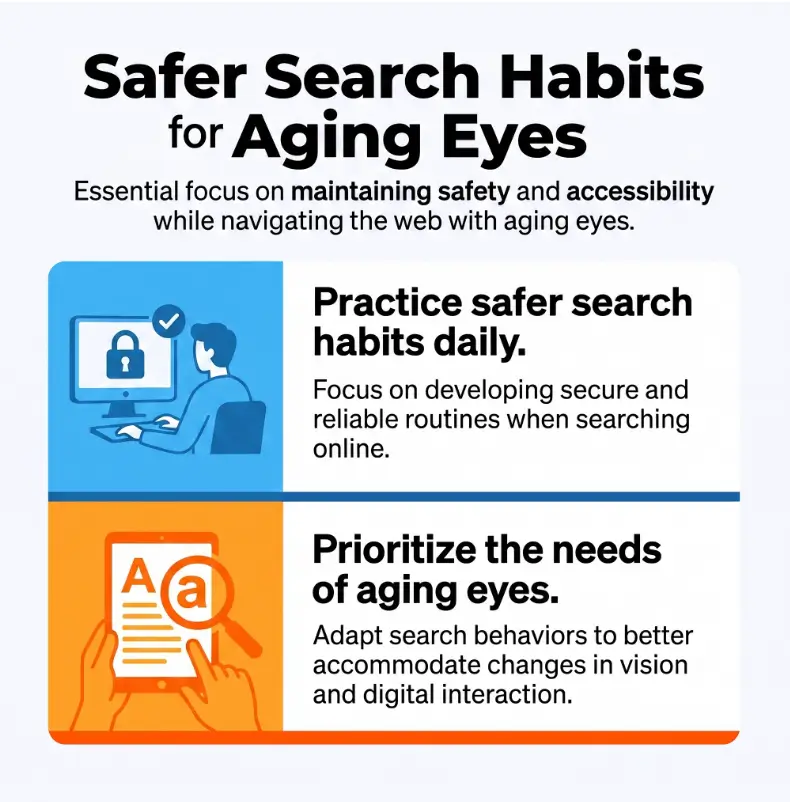
The First Result Isn’t Necessarily the Best Result
Search pages reward speed. The cursor is already hovering, the top headline seems relevant, and the first result often feels like the obvious door.
But search results can include paid listings as well as ordinary organic results. A paid result may be useful, reputable, and exactly what you need. The important distinction is simpler: someone paid for that placement, while an organic result was selected through the search engine’s normal ranking system.
Why paid listings can appear above organic results
Advertising can occupy prominent parts of a search page, including positions above ordinary results. Shopping units, local listings, maps, answer boxes, and other page features can also compete for attention.
That means “top of the page” is a location, not a certificate of quality. Think of the first position as the front shelf in a store. It deserves a look, but the shelf position alone does not tell you whether the item is right for you.
Where “Sponsored” labels usually appear
Look around the website name, displayed address, or other information immediately above the result headline. Depending on the device and current page design, the disclosure may appear as wording such as Sponsored or Ad.
The exact presentation can change. That is why memorizing one screenshot is less useful than learning a process that survives redesigns.
The tiny visual cue that is easy to miss
The problem is rarely that the label is completely invisible. More often, it is surrounded by several other pieces of text competing for the same small patch of screen.
If your eyes are already working hard to resolve small type, it is natural to jump toward the largest, darkest element: the headline. The disclosure may be technically present while receiving almost none of your attention.
Key takeaway
Never use rank position as your only trust signal. Before clicking the first result, identify what kind of result it is and where it leads.
Ads vs. Organic Results: The 5-Second Visual Check
You do not need to inspect every search page like a forensic analyst with six monitors and a wall of red string. A fast routine is enough for ordinary searches.
Step 1: Look above or beside the website information
Before reading the headline, glance at the smaller line near the website name or displayed address. Search for a paid-placement disclosure.
Step 2: Read the domain before reading the promise
A headline can say almost anything. The domain tells you which site is actually opening.
If you searched for a bank, insurer, hospital, pharmacy, government agency, or Medicare information, compare the domain with the organization you expected to reach.
Step 3: Scan two or three results before choosing
Moving your eyes down even one additional result changes the decision from automatic to comparative. You may notice that the official organization appears slightly lower, or that several sites are offering different kinds of help.
Step 4: Treat position as placement, not proof
- Find the disclosure label.
- Read the domain.
- Compare at least one other result.
- Click only when the destination makes sense.
For a recipe or gardening question, you may perform this check almost subconsciously. For a credit card login or benefits question, give it a few extra seconds.
Apply this in 60 seconds
Search for something harmless such as “weather tomorrow” or “local library hours.” Do not click immediately. Find the website name, look for any sponsorship label, read the domain, and compare the next result. Practicing when nothing is at stake makes the habit easier when something is.
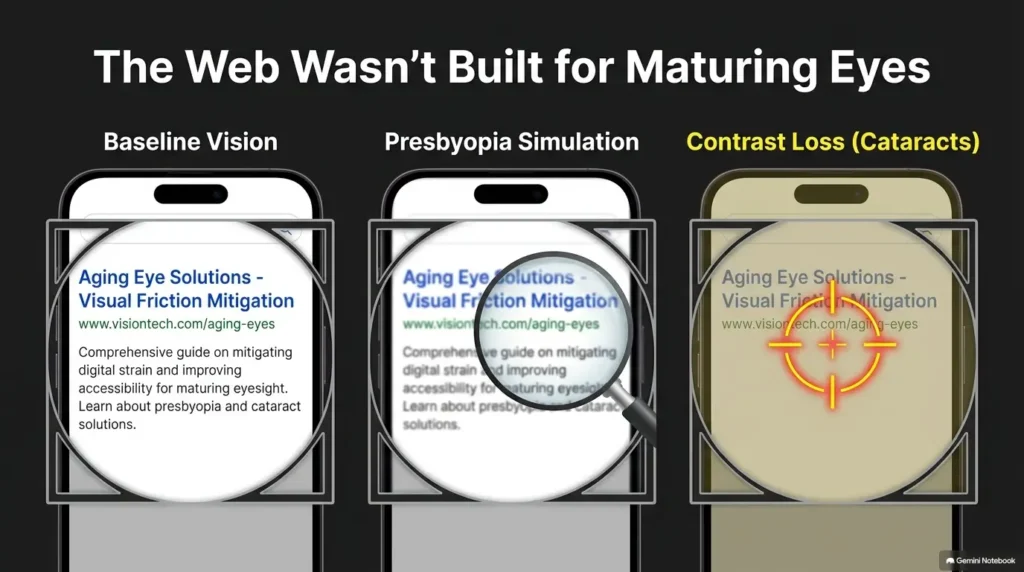
Aging Eyes Change the Search Page More Than You Think
The search page has not necessarily become more complicated because you are older. What changes is the amount of visual effort required to separate small pieces of information quickly.
If near vision, contrast, glare, or visual fatigue are becoming more noticeable, even a familiar screen can begin to feel oddly compressed. Readers dealing with ordinary age-related near-vision changes may also find the practical strategies in this guide to helping an aging parent with presbyopia useful.
Small labels can blend into surrounding text
Search results often contain several visual layers: site name, domain, headline, description, extra links, icons, ratings, prices, map information, or other interface elements.
When everything is readable but only barely, the eye tends to prioritize the largest text. That makes the result headline easy to see and the smaller contextual clues easier to skip.
Contrast and glare can change what stands out
A pale disclosure, gray secondary text, reflections on a glossy display, or bright light from a nearby window can make small interface details harder to separate.
If glare is part of the problem, do not assume stronger magnification is always the first answer. Screen position, brightness, room lighting, and contrast can matter just as much.
Mobile search can feel especially dense
A phone compresses a remarkable amount of information into a few inches. When you are holding the device farther away to improve focus, the type becomes smaller again. It can feel like negotiating with a stubborn accordion.
If your phone is the main search device, a broader senior-friendly smartphone settings setup can reduce the amount of visual effort required throughout the day, not just during Google searches.
Short Story: The label that disappeared
Consider a familiar situation. Evelyn, 71, searches for the login page for a company she uses every month. The first result contains the company name in large type, so she clicks it without reading the smaller line above.
The page looks professional, but something feels slightly off. Instead of the normal sign-in screen, it immediately asks for a phone number and several personal details.
Evelyn closes the page and searches again. This time she enlarges the browser, notices that the first listing is sponsored, and reads the domain. The company’s familiar official address is farther down the page.
The lesson is not that the first advertiser must have been fraudulent. The useful lesson is that Evelyn’s second search gave her enough visual room to notice the difference before entering information. The protective move was not suspicion. It was readability plus one deliberate pause.
Make Search Results Easier to Read Before You Click
If you cannot comfortably read the disclosure and domain at your normal viewing distance, fix the display before trying to become a better scanner. A readable page beats heroic squinting every time.
Increase browser zoom first
On many desktop browsers, pressing Ctrl and + on Windows or Command and + on a Mac enlarges webpage content. Your browser menu usually includes zoom controls as well.
Try one or two increases, then check whether the site name, disclosure, domain, and result description can all be read without leaning toward the screen.
Increase text size or display scaling on your device
If nearly every app feels too small, changing the device-level text or display settings may be more useful than enlarging individual webpages repeatedly. The guide to choosing the best phone font size for seniors explains how to balance larger text with usable screen space.
Modern phones and computers also include accessibility features for magnification, contrast, spoken content, and screen reading. Apple maintains an official accessibility resource, while Android users can review Android accessibility help.
Improve contrast before buying another gadget
Try changing screen brightness, moving away from window reflections, cleaning the display, adjusting text contrast where your device allows it, and placing the screen at a comfortable viewing distance.
These fixes cost nothing and sometimes produce a bigger improvement than buying stronger reading glasses for a problem that is partly glare or screen design.
When reading mode helps, and when it does not
Reader or reading modes can make long articles easier to consume after you open them. They are less useful for distinguishing search-result types because you need to see the search page itself before clicking.
Key takeaway
Use the least complicated fix that makes the label and domain comfortably readable. Browser zoom is often the best first experiment because it is free, reversible, and immediate.
The Domain Check: Your Best Backup When Labels Are Hard to See
When sponsorship labels are difficult to identify, the destination domain becomes your second line of defense.
Don’t trust the headline alone
A search headline can include a familiar brand, government program, medical term, or service name. That does not mean the site belongs to the organization named in the headline.
Read the website information separately from the title. For important accounts, compare it with an address you already know from a statement, card, bookmark, official letter, or previous trusted visit.
Read the important part of the domain
Suppose a result displays something resembling bank-login.example.com. The meaningful registered domain in that simplified example is example.com. The familiar-looking words before it do not turn the site into your bank.
Real addresses can be more complicated, especially with country-specific endings, so the goal is not to become a domain engineer. The goal is to notice when the actual site name is different from the organization you intended to visit.
What .gov, .org, .edu, and .com can and cannot tell you
In the United States, a genuine .gov domain is a strong signal that you are dealing with a government entity. Other endings such as .com and .org do not tell you by themselves whether a site is trustworthy, independent, commercial, nonprofit, or suitable for your situation.
When searching for a government program, going through USA.gov or an address from an official document can be safer than guessing which search result is official.
A one-letter difference deserves a second look
Look carefully for swapped letters, extra words, unnecessary hyphens, or unfamiliar endings when the page asks for passwords, verification codes, Social Security information, banking credentials, or payment details.
If anything feels inconsistent, close the page and reach the organization through a saved bookmark, official app, statement, card, or manually entered address.
Show me the nerdy details
Search-result scanning is heavily influenced by visual hierarchy. Large headlines attract attention first, while smaller labels and address information act as secondary context. That is efficient when vision and contrast are comfortable, but less forgiving when small text requires extra effort.
This is why enlargement changes more than letter size. It can change the order in which you perceive information. Once the site name and domain become as easy to read as the headline, they have a better chance of entering your decision before the click.
A durable safety system therefore uses multiple signals: sponsorship disclosure, expected domain, context, destination-page consistency, and the sensitivity of the task. No single visual cue has to carry the entire burden.
Common Mistakes That Turn a Quick Search Into a Bad Click
Most accidental clicks are not caused by recklessness. They are caused by familiar habits operating faster than the eyes can verify the page.
| Mistake | Why it happens | Safer alternative |
|---|---|---|
| Clicking the first result automatically | Top position feels like a recommendation | Check the label and compare one more result |
| Reading only the headline | The headline is larger and visually dominant | Read the domain before clicking |
| Trusting polished design | Professional-looking pages feel familiar | Verify the site independently |
| Assuming “official” in the title proves identity | Familiar wording creates confidence | Confirm the actual domain |
| Continuing when a page feels unexpected | You have already invested time in the click | Close it and start again through a known route |
Use a higher standard for Medicare, banking, and government searches
A casual click is less consequential when you are comparing tomato soup recipes. The standard should rise when the destination might ask for an account number, Medicare information, insurance details, payment data, or identity verification.
For Medicare-related searches, it may help to pair these habits with a system for recognizing and organizing Medicare notices for seniors. For card and payment tasks, the credit card checklist for seniors provides another layer of practical verification.
Be careful when the destination immediately asks for information
A request for a phone number or email address is not automatically suspicious. Many legitimate businesses use forms. Context matters.
But if you thought you were opening an informational page and instead land on a form asking for personal details, stop and verify what kind of site you reached before continuing.
Treat verification codes as high-sensitivity information
One-time codes are designed to protect accounts. If a page, caller, or message unexpectedly asks you to provide one, verify the request through the organization’s normal channel first. The guide to verification codes for seniors explains this in more detail.
If a search result leads to a page that feels suspicious, the Federal Trade Commission provides consumer guidance on common scam patterns and reporting options.
Review FTC Scam GuidanceKey takeaway
The moment a search turns into an account, identity, benefits, or payment task, move from “quick browsing” to “verify before entering.”
Free vs. Paid Accessibility Tools: What Is Actually Worth Trying?
You do not need to buy special equipment simply because a search label is hard to read. Start with the free controls already inside your browser, phone, tablet, or computer.
Paid tools make more sense when the problem extends beyond one website and affects mail, medicine labels, paperwork, menus, screens, or everyday reading.
| Setup | What it includes | Best for | Cost approach |
|---|---|---|---|
| Good | Browser zoom, larger device text, brightness and contrast adjustments | Mild difficulty with small labels | Usually free |
| Better | Built-in magnifier, spoken text, larger display, improved lighting | Frequent screen-reading strain | Free to moderate depending on hardware |
| Best fit for substantial difficulty | Screen-reader or magnification training, low-vision assessment, task-specific tools | When ordinary adjustments are no longer enough | Varies by service and equipment |
When free settings are enough
- You can read comfortably after increasing zoom one or two levels.
- Your difficulty is mostly limited to small interface text.
- You can identify domains once the page is enlarged.
- You do not regularly need magnification for paper documents or household labels.
If that describes you, there may be little reason to buy anything. Save the money for coffee, books, or something with a less disappointing instruction manual.
When a magnifier may be worth comparing
If small print is difficult across both screens and physical materials, a handheld, stand, electronic, or device-based magnifier may be useful. Before buying, compare working distance, field of view, lighting, stability, ease of focusing, portability, and return policy.
The broader guide to magnifiers for seniors can help you compare formats without assuming that stronger magnification is automatically better.
When professional low-vision help may make sense
Consider asking an eye-care professional about low-vision services when reading difficulty is interfering with medication use, finances, navigation, safety, communication, or independent technology use.
The goal is not simply “more magnification.” A useful assessment looks at the tasks you actually want to perform and which combination of lighting, contrast, enlargement, speech, positioning, or equipment fits those tasks.
What to ask before buying an accessibility tool
- Can I solve this with a device setting first?
- Can I test the tool before committing?
- Is the text or control system simple enough to use independently?
- Does it solve one specific recurring problem?
- What is the return policy?
- Will a stand or hands-free option be easier than something handheld?
For a broader starting point, see the site’s guide to low-vision tools for seniors.
When the Page Still Feels Too Small or Too Confusing
There is a point where “zoom a little more” stops being a complete answer. If you can enlarge a search page substantially and still cannot reliably identify the label, domain, or destination, change the method instead of trying harder with the same one.
Use screen magnification instead of repeatedly squinting
Built-in screen magnifiers can enlarge a selected portion of the interface rather than merely increasing webpage text. This can be useful when the disclosure itself is tiny or when the browser zoom changes the page layout too much.
Consider spoken content or a screen reader
Text-to-speech can reduce visual fatigue, while a full screen reader can provide a nonvisual way to navigate digital content. There is a learning curve, but the payoff can be significant when enlargement alone is no longer dependable.
Caregivers: teach a routine, not a warning
Telling a parent “be careful online” is too vague to be useful. A better approach is to practice a specific routine together on harmless searches.
- Enlarge the screen.
- Point out the sponsorship label.
- Read the domain aloud.
- Compare the next result.
- Open the page and confirm that it matches expectations.
Then repeat it several times without taking over the mouse or phone unless help is requested. Independence grows from repeatable procedures, not from having someone else perform every click.
When asking someone to verify is the sensible option
- The page is asking for a payment or bank account information.
- You cannot confidently identify the domain.
- The website looks different from the one you usually use.
- You arrived through an unexpected email, message, or phone call.
- The task involves government benefits or identity information.
- You feel pressured to act immediately.
Key takeaway
If the information cannot be made reliably readable, change the tool or ask for verification. Confidence should come from a clearer process, not from guessing harder.
The 10-Second Search Routine You Can Remember
The safest habit is also the easiest to remember: label, domain, compare, click.
The 4-Step Safer Search Flow
Label
Look for the disclosure before the headline. If you cannot read it comfortably, enlarge the page.
Domain
Confirm which website will actually open. Familiar headline words are not enough.
Compare
Move down at least one result. This small interruption breaks the automatic “first result equals answer” habit.
Click
Open the page only when the site, result type, and purpose fit what you intended to find.
Once the page opens, perform one last consistency check. Does the logo, domain, purpose, and requested information make sense together? If the experience suddenly changes character, back out and start from a known route.
The memory trick
Label → Domain → Compare → Click. The sequence matters. Clicking comes last, after the information that helps you judge the result.
FAQ: Ads, Sponsored Results, and Safer Searching
Are the first Google search results always ads?
No. The exact mix varies by search, device, location, and page design. Some searches may show sponsored listings prominently, while others may begin with organic results or other search features. Check the individual result rather than assuming based on position.
What does “Sponsored” mean in search results?
It indicates paid placement. It does not automatically mean the advertiser is unsafe, nor does it mean the search engine independently selected that listing as the best answer for you.
Can an advertised search result still be legitimate?
Yes. Many legitimate organizations advertise. The useful habit is not “never click an ad.” It is “know that it is an ad, check the destination, and decide deliberately.”
Why do ads sometimes look similar to normal results?
Both are presented within the same search interface and often contain similar building blocks such as a website name, headline, description, and links. The sponsorship disclosure is the key contextual difference to look for.
How can I make search results larger and easier to read?
Start with browser zoom. If everything on the device feels small, increase system text size or display scaling. Built-in screen magnifiers, contrast settings, and spoken content can provide additional help.
How do I know whether a website is really a government website?
For U.S. government services, look carefully at the domain and consider beginning at USA.gov or an official address printed on a government document. Do not rely on the word “official” in a search headline alone.
Can scammers buy search advertisements?
Fraudulent advertising and impersonation attempts can occur online, which is why the safest approach is to verify the destination independently whenever personal, financial, medical, or identity information is involved.
Is it safer to skip all sponsored search results?
Not necessarily. A sponsored result can be legitimate and useful. The important distinction is awareness. If you prefer to avoid paid listings when searching for an official account or government service, scrolling until you identify the expected official domain is a reasonable habit.
What should I do if I clicked a suspicious search result?
If you only opened the page and did not enter information or download anything, close it and return through a trusted route. If you entered a password, payment information, verification code, or sensitive personal details, contact the relevant institution through its official channel and follow its account-security instructions promptly.
Optional video: Open the video on YouTube (external site).
Your 15-Minute Search Reset
You do not need a new browser, a complicated security program, or a lecture about how dangerous the internet can be. Start by making one ordinary search page easier to read.
Minutes 1 to 5: enlarge the display
Increase browser zoom or device text size until you can comfortably read both the large headline and the smaller website information above it.
If you want to make the adjustment system-wide, revisit the smartphone settings for seniors guide and choose one display change to test for a full day.
Minutes 6 to 10: practice three harmless searches
- Search for a local library.
- Search for a familiar national organization.
- Search for a common household question.
On each search, say the sequence quietly or aloud: label, domain, compare, click.
Minutes 11 to 15: create safe routes for important sites
Bookmark the official pages you regularly use for your bank, insurer, healthcare portal, government benefits, utilities, or other sensitive accounts. The fewer important sites you have to rediscover through search each month, the fewer opportunities there are for a rushed click.
When you need a U.S. government service and are unsure which result is official, start from the government’s central public-services directory instead of guessing from a search headline.
Open USA.govThe goal is not to avoid every advertisement
The goal is to know what you are clicking. Once the page is readable enough to distinguish the label, domain, and destination, search becomes less of a visual reflex and more of a small, controlled decision. That extra ten seconds is often all the breathing room you need.
Last reviewed: 2026-09
PUT THIS GUIDE TO WORK · INTERACTIVE WORKSHEET
Search-result inspection worksheet
Use this worksheet alongside the article: How to Tell Ads from Real Search Results with Aging Eyes. Use the fields provided to organize your notes and next actions, then save your worksheet.
Your entries stay in this page and are cleared when you reload. No account is needed. Saved files are downloaded only to your device.
How to use your result
Save the worksheet before leaving this page. Recheck any quote, date, or instruction with the relevant provider, pharmacist, manufacturer, or official organization. A completed checklist means you recorded the steps, not that an outcome is guaranteed.
Worksheet added October 20, 2026. Read the article above for context and its stated review scope.